Change the aspect ratio of an image without cropping
Stories and Reels want 9:16, feed posts look best at 4:5, and a landscape photo fits neither. Extend the image to the ratio the app expects so the platform does not cut it for you.
Images 0/1
Aspect ratio
Expand an image to a new aspect ratio in one click. Upload a JPG, PNG, or WebP, pick a ratio, and the AI image extender fills the new space around your photo while the original part stays exactly as it was.


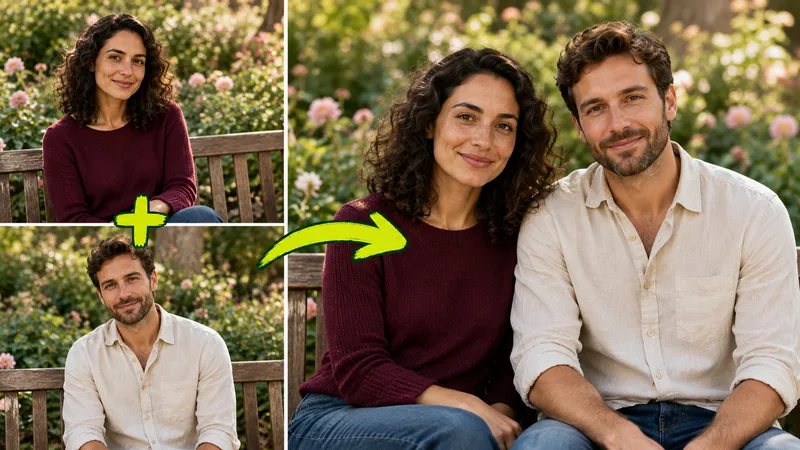
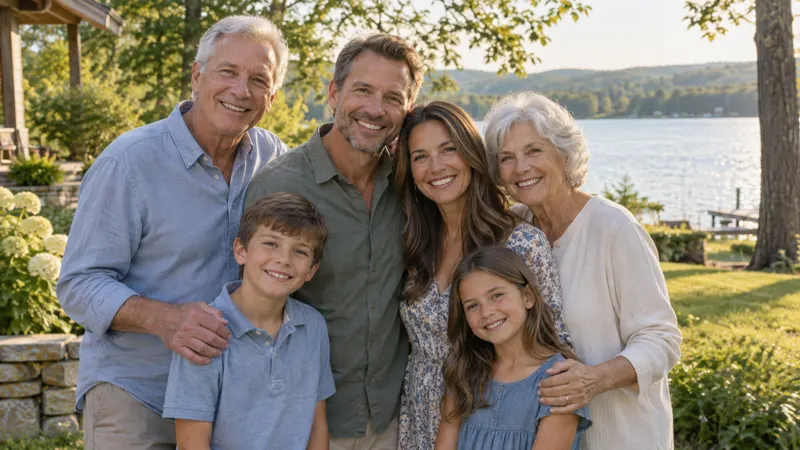
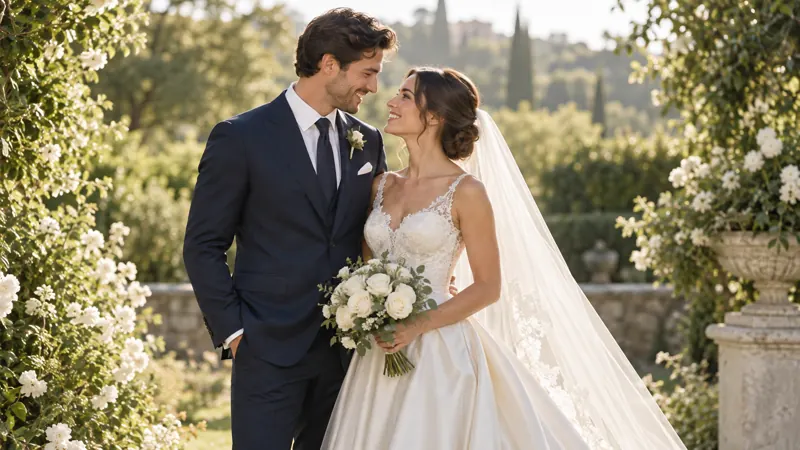
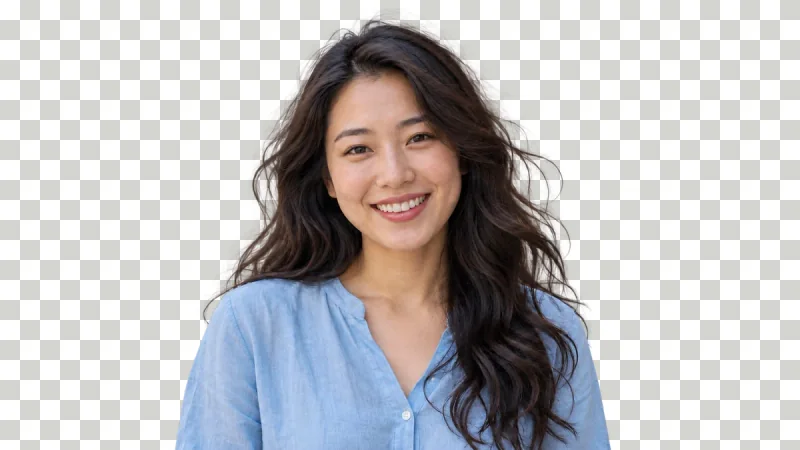
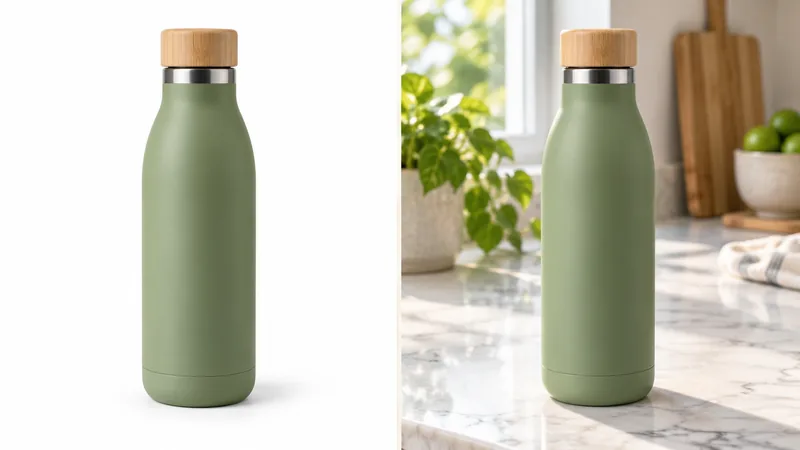
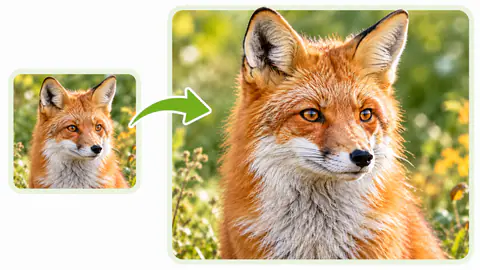
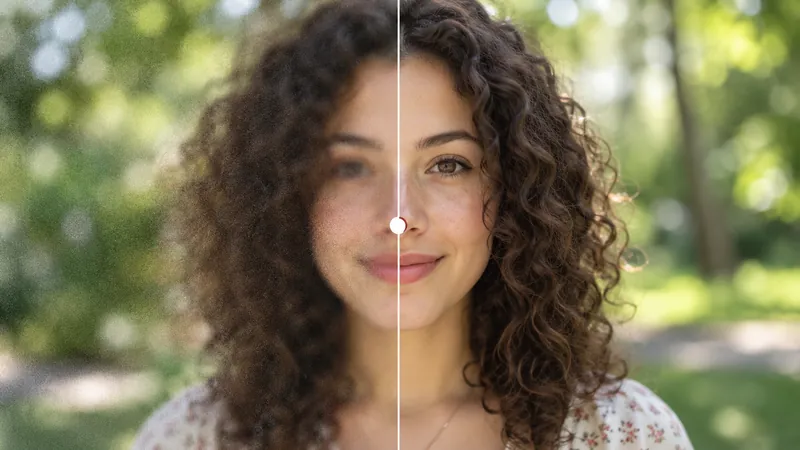
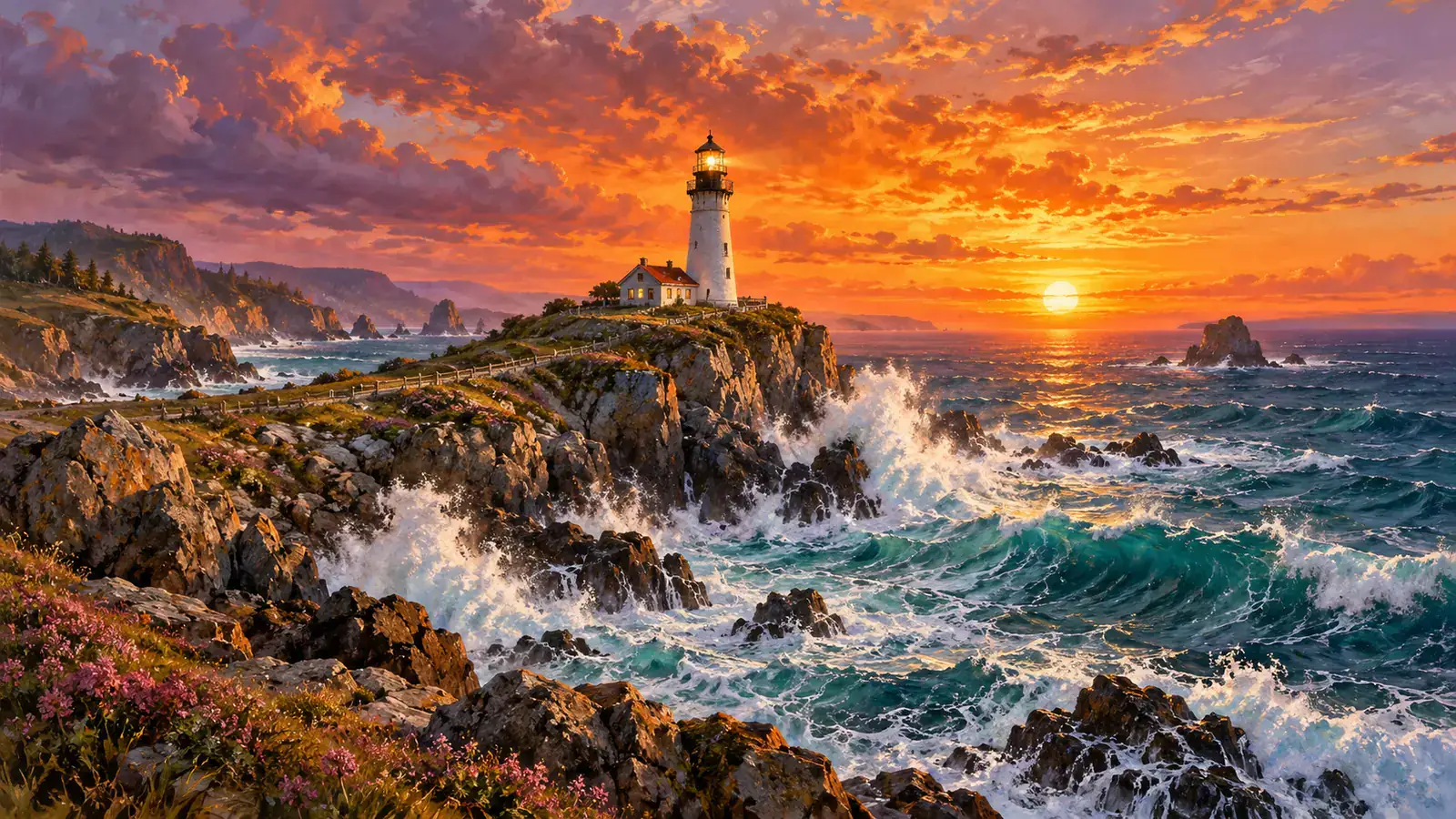
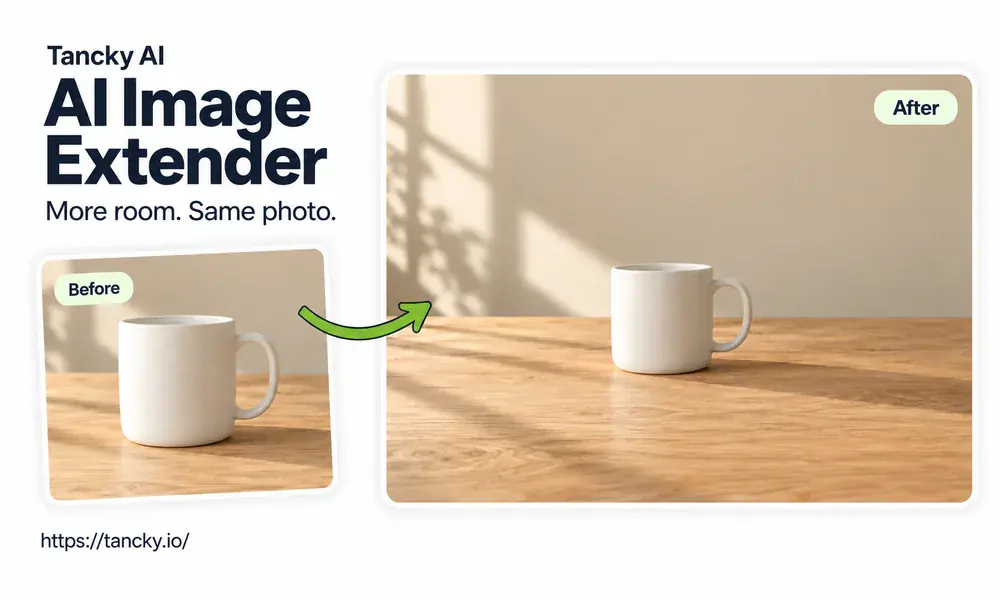
Each row starts from one image and one target ratio: the original on the left, the extended image on the right.
 Before
 After
After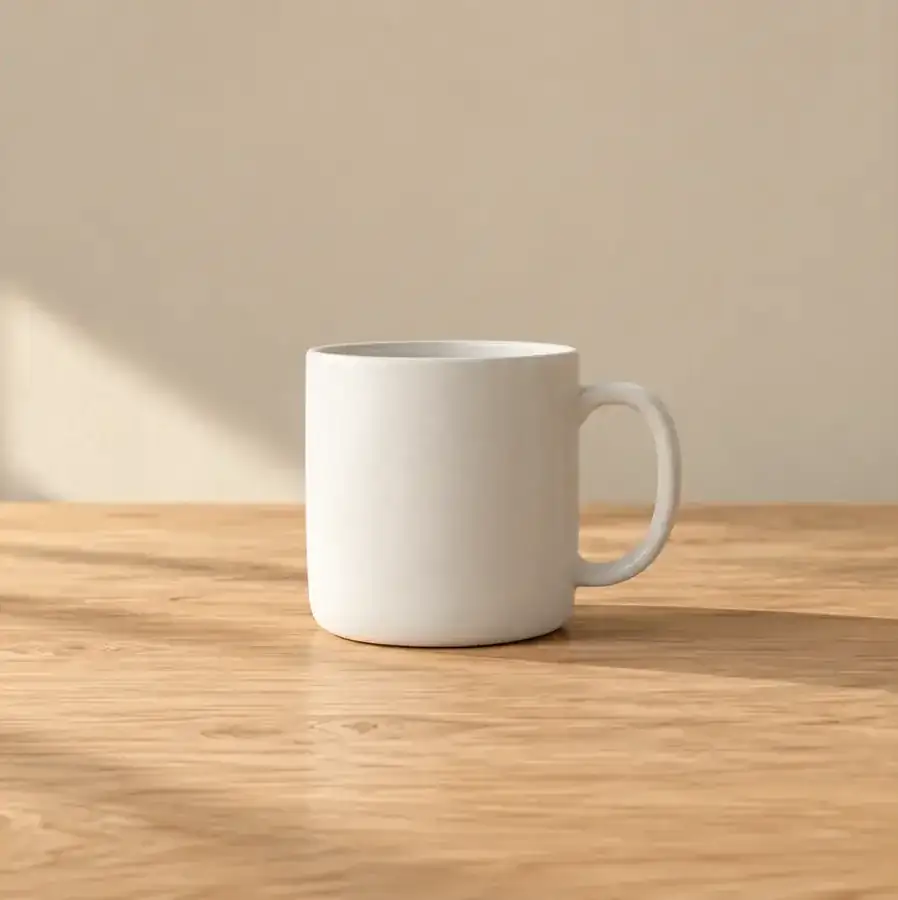 Before
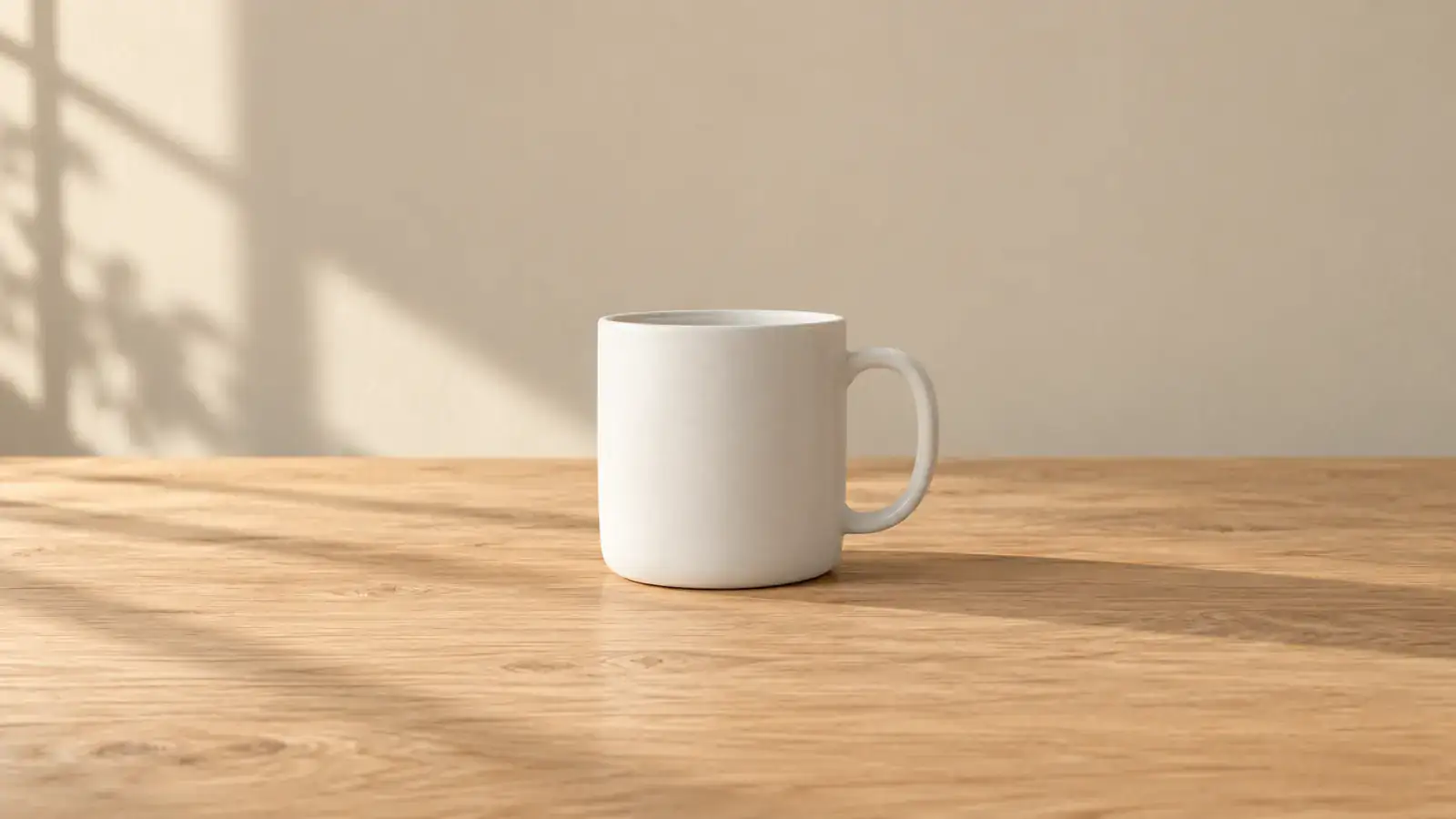 After
After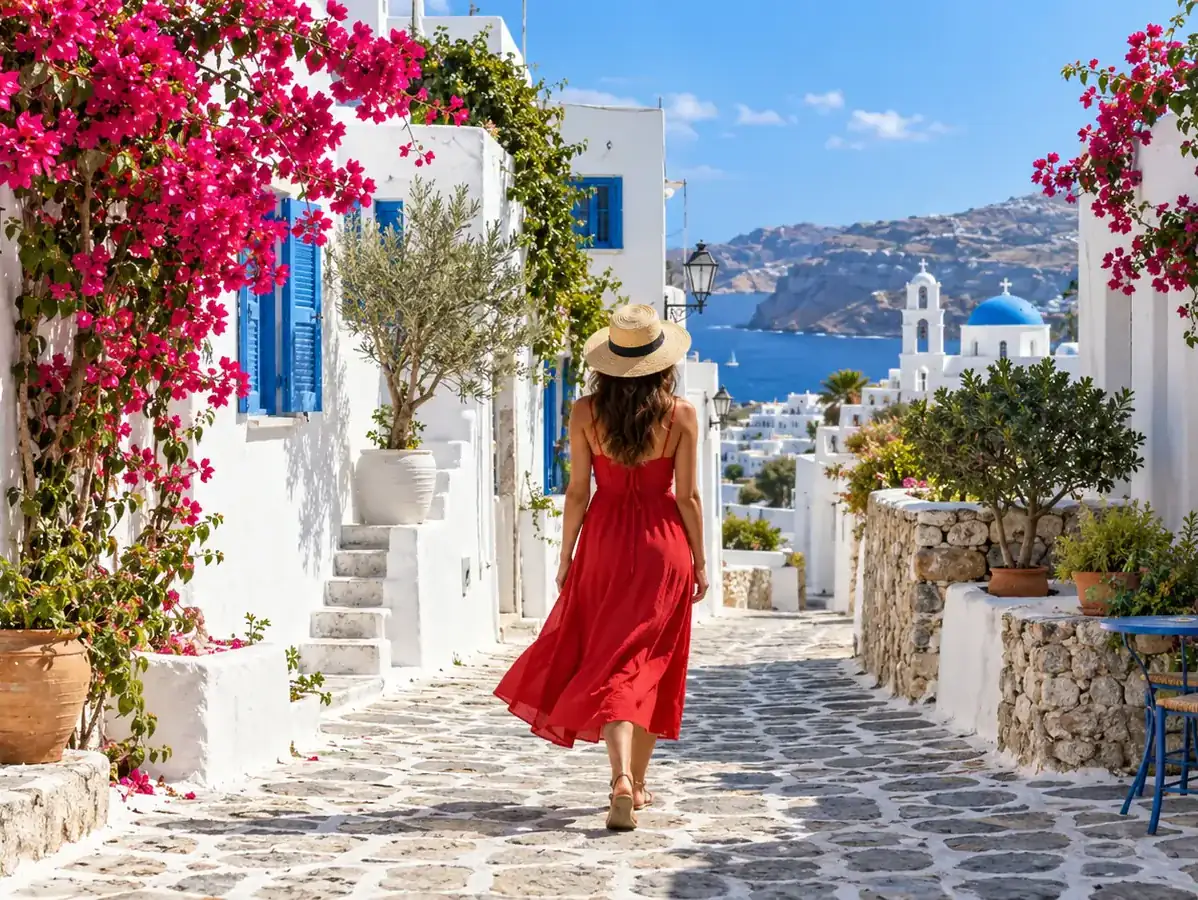 Before
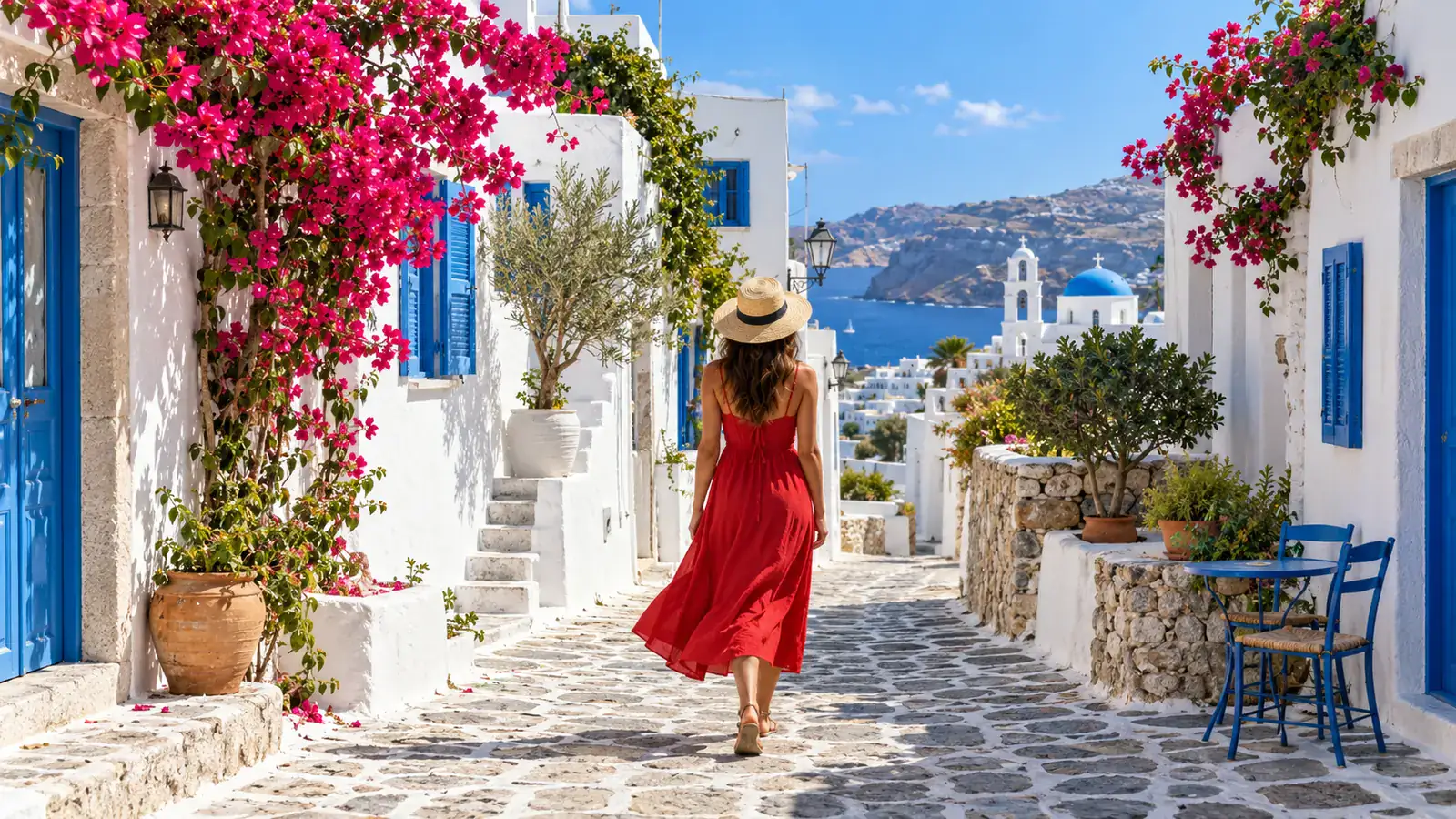 After
After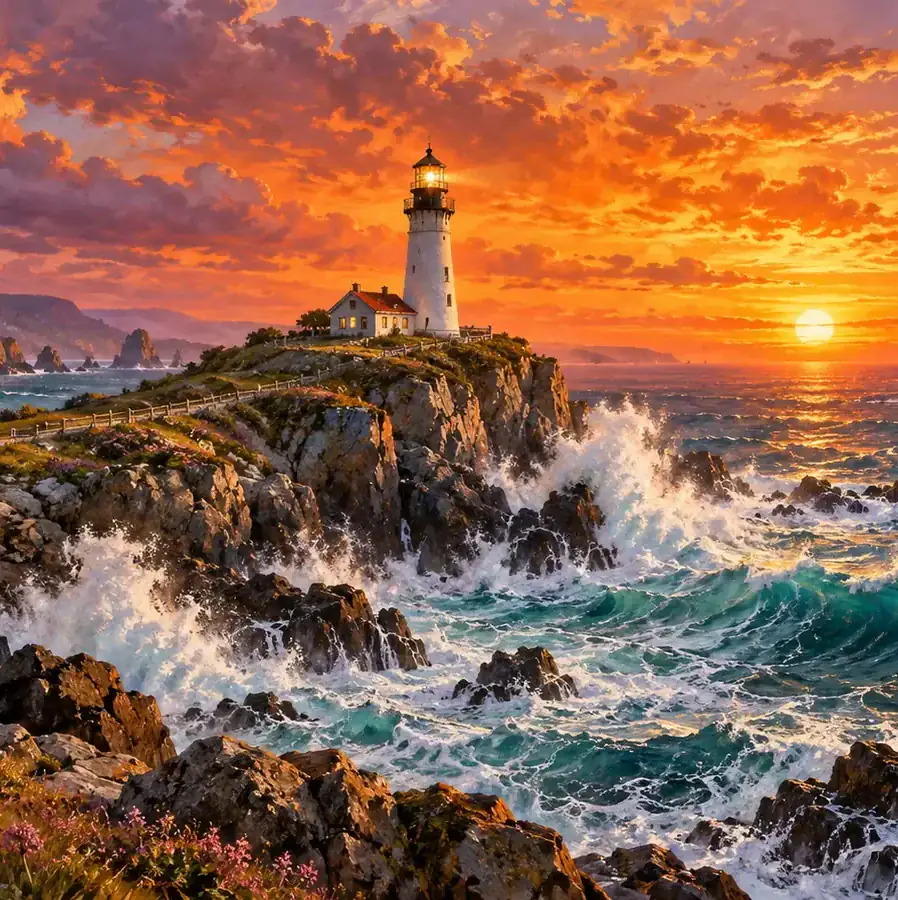 Before
 After
AfterAn AI image expander adds new picture area around a photo. You choose the shape you need, and the AI reads the edges of the image and continues them: more sky above a skyline, more floor under a chair, more garden behind a person. Editors call this outpainting or uncropping. Cropping reaches a new shape by removing part of the photo, while extending keeps the whole photo and builds outward, so nothing you already had is lost. This AI image extender places your image in the center of the new frame at its full size and fills only the empty space. The original area keeps its pixels and its sharpness, so faces and small text look exactly as they did before.
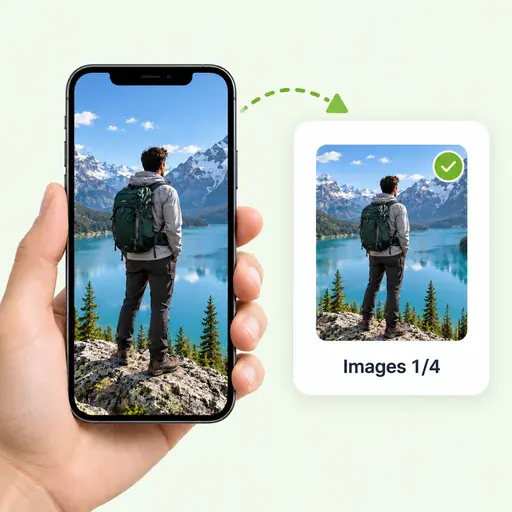
Drag a JPG, PNG, or WebP image into the AI image extender from your phone or computer.
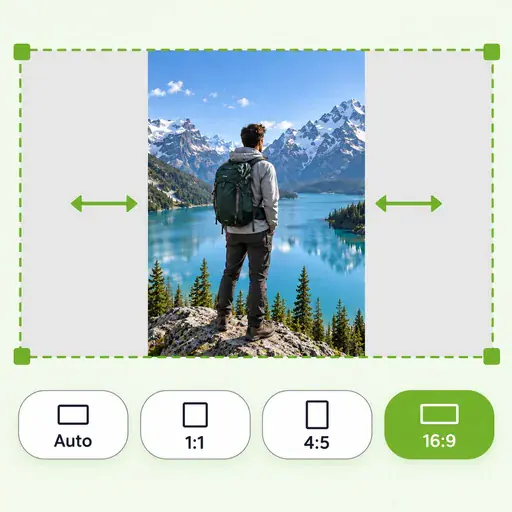
Pick one of nine ratios between 16:9 and 9:16, including 3:2, 4:3, 1:1, 4:5, and 2:3, and the AI adds space on the sides that need it. Choose Auto, or the ratio your image already has, to widen the view evenly on every side.
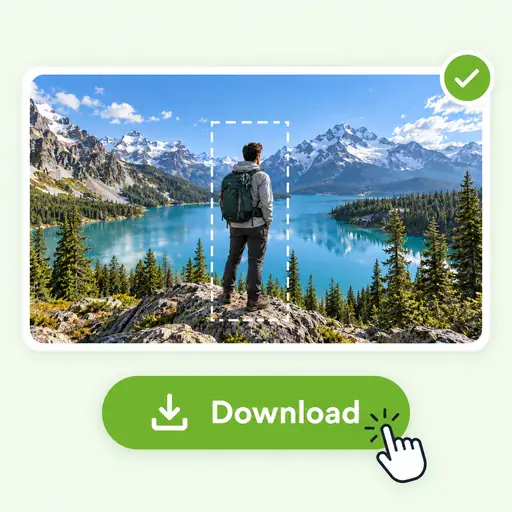
The result appears next to your upload. Check the new edges, then download the extended image with no watermark.
Most of the time an image is fine and only its shape is wrong for the place it has to go. These are the jobs people bring to an AI image extender.
Stories and Reels want 9:16, feed posts look best at 4:5, and a landscape photo fits neither. Extend the image to the ratio the app expects so the platform does not cut it for you.
Phone pictures and screenshots are often cropped close to the subject. Uncrop the image to recover space around a person, a pet, or a building and make the framing feel less cramped.
Website headers, YouTube thumbnails, and desktop wallpapers are wide. Make the image wider at 16:9 and the subject keeps its size and position in the middle of the frame.
Ads, flyers, and slides need empty space for words. Extend the photo background on one side of the subject, then place your headline over the plain area.
One product photo has to serve a square listing, a 4:5 social ad, and a wide store banner. Extend the same shot to each size so the product looks identical everywhere.
Liked a square AI image but need a phone wallpaper or a book cover? Outpaint it to 9:16 or 3:4 and the scene continues around the part you already like.
Before extending a photo, people usually ask whether the original will change, which shape to pick, and how much extra work it takes. Here is how this AI image extender handles each of those.
Some tools repaint the whole image to fit a new shape, and a face can come back looking like someone else. This one only paints the empty frame around your photo, which makes it safe for portraits, product shots with labels, and screenshots with text.
Auto skips the choice altogether: it keeps the shape you already have and adds the same amount of new scene on every side, which gives a cramped subject room to breathe or leaves margin for a frame.
Images made with the other tools on this site, such as the image combiner, background changer, or photo enhancer, have an extend button under the result. Pick a ratio there and the wider version appears next to it, with no download and re-upload in between.
On a paid plan you can extend several listing or catalog photos to the same ratio in one run, so every tile in a grid or carousel lines up without cropping any product.
Answers about extending images: aspect ratios, what changes in your image, prompts, quality, and privacy.
Upload an image, pick an aspect ratio, and download the extended image with no watermark.