How to Put Two Pictures Side by Side: Complete Free Guide for Any Device
Put two pictures side by side on iPhone, Android, Windows, Mac, or in any web browser without installing extra apps. Master sizing alignment and lossless exports.
Creating before-and-after comparisons, showcasing product variations, or pairing photos for social media are everyday tasks. Even so, basic side-by-side photo stitching frequently runs into irritating snags. Unequal dimensions leave jarring blank gaps around the borders. Built-in phone collage templates aggressively crop out heads or feet to fit rigid presets. Many mobile apps stamp large watermarks across your work or compress the resolution into blurry artifacts.
Achieving a clean, high-resolution side-by-side image comes down to selecting the right native or web-based tool for your current device, alongside choosing the proper alignment mode when two pictures share different proportions. Below is a quick comparison of the best free methods across every platform, followed by tested step-by-step workflows and alignment rules.
Quick Comparison Across Devices
| Device | Recommended Method | Key Takeaway |
|---|---|---|
| Any device with a browser | Online Merge Images tool (No install) | Runs locally inside browser memory, files never leave your device, supports flexible sizing and spacing |
| iPhone and iPad | Shortcuts App (Built-in) | Set up once, then run it from the Shortcuts app or your Home Screen; best for photos with the same orientation |
| Android phones | Google Photos or Samsung Gallery collage | Ready instantly, though preset frames often crop outer edges |
| Windows PC | Built-in Paint | Completely manual control over canvas sizing and alignment, requires zero software downloads |
| Mac | Shortcuts as a Finder Quick Action | Triggered with a right-click in Finder, perfect for rapid desktop workflows |
Method 1: Browser-Based Lossless Merging (Universal and Private)
The most adaptable route on any phone, tablet, or desktop computer is our dedicated free tool, Merge Images. The entire image composition engine operates inside your local browser tab. Your files remain on your hardware without server uploads, making it completely safe for private snapshots, confidential receipts, or client design assets.
- Add your pictures: Open the Merge Images page. Click the "Add images" button to browse files, or drag and drop your photos straight into the dropzone. On desktop, you can also paste an active screenshot using
Ctrl+V(orCmd+Von Mac). - Confirm layout orientation: The default layout is "Horizontal", placing both images side by side. Switch to "Vertical" whenever you prefer a stacked top-to-bottom layout.
- Choose the alignment mode: When your photos have contrasting aspect ratios (such as a portrait photo beside a landscape shot), this setting dictates how the edges meet. You can pick between "Match smallest", "Crop to fit", "Original", and "Match largest".
- Fine-tune borders and spacing: Use the spacing slider to introduce a clean separation between images with matching edge tones. Background color and border settings sit right below the slider, and outer margin and corner radius are under "More options".
- Export in high definition: Save your finished image as PNG, JPG, or WebP. You can also click "Copy" to paste the result directly into documents, emails, or chat windows.
The utility is free, requires no sign-up, enforces no daily quotas, and adds no watermarks.
Handling Different Dimensions: Choosing the Right Alignment
The biggest challenge in side-by-side composition arises when the two source photos have conflicting shapes. A common real-world pairing involves a wide 16:9 landscape photo beside a 1:1 square image saved from social media.
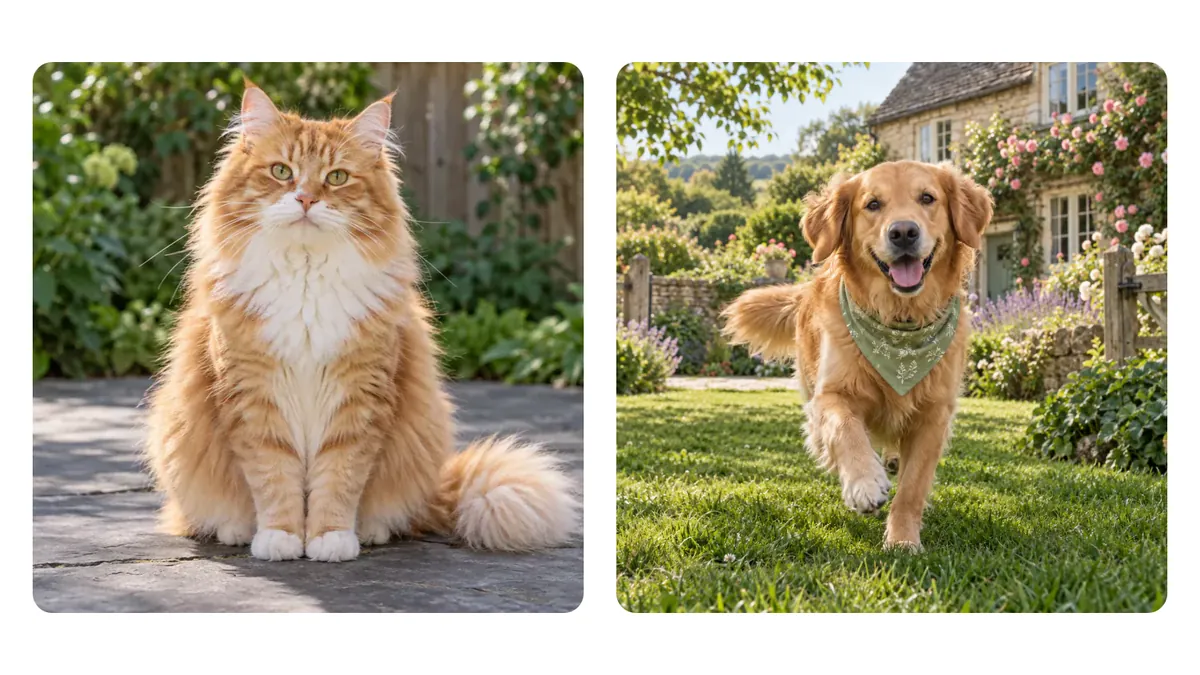
To examine how different sizing algorithms resolve this conflict, we tested three primary options using the same pair of photos (a 1200 × 675 landscape cat on the left, and a 1200 × 1200 square dog on the right):
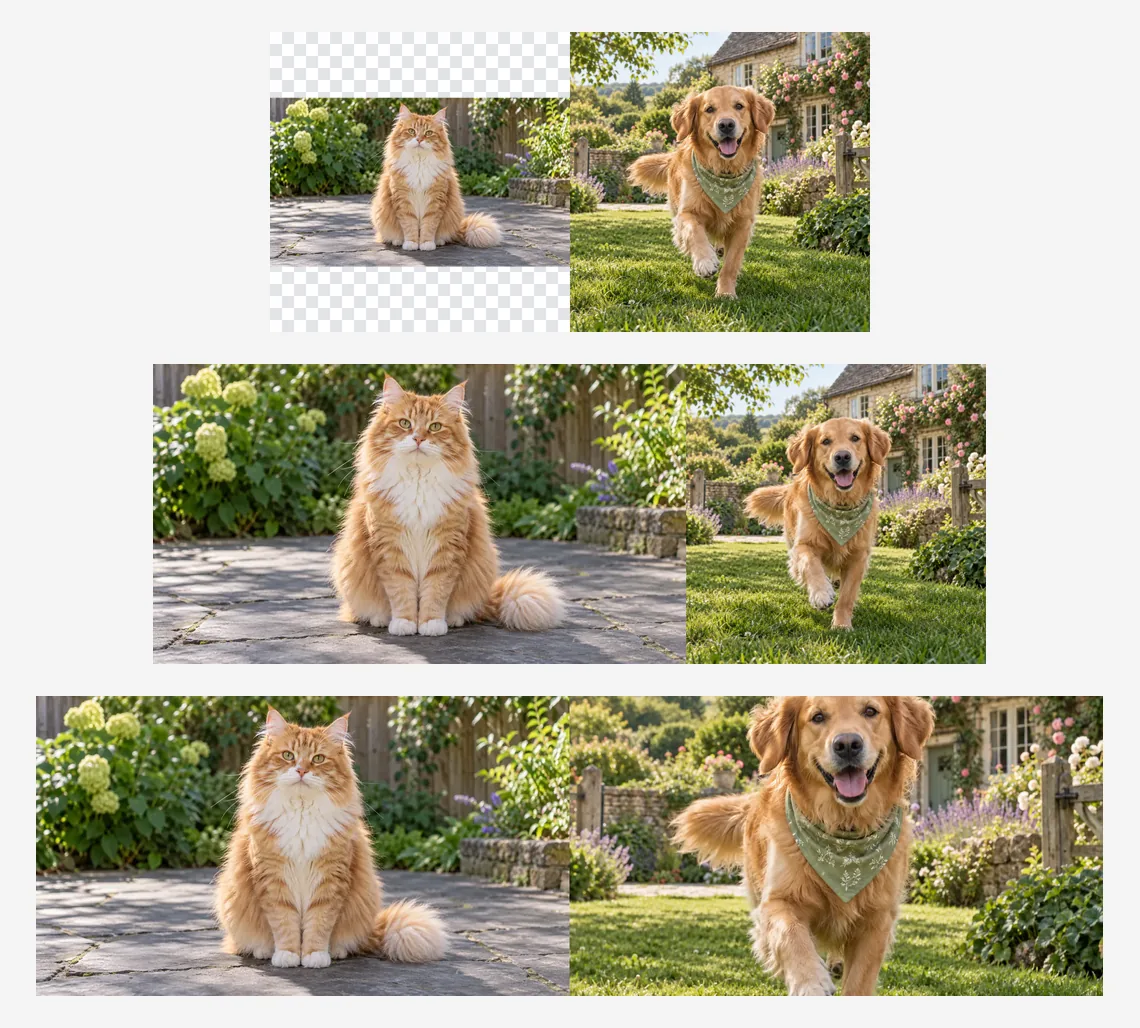
Each option serves a distinct presentation goal:
- Match smallest (Recommended default): The system scales down the larger picture proportionally until its vertical height matches the shorter picture. The export measures 1875 × 675 pixels. Both photos remain fully visible without cropping, and no pixels undergo artificial upscaling. This provides the most harmonious presentation while honoring the full framing of each subject.
- Crop to fit (Best for symmetrical subjects): The system crops both photos inward from their centers until they share identical aspect ratios and dimensions. The export measures 2400 × 675 pixels (two side-by-side 16:9 frames). The overall layout appears perfectly uniform. Notice in the sample that the dog's bottom paws are cropped out, because the square image sacrificed vertical area to fit the 16:9 ratio. Reserve this mode for before-and-after shots taken with identical framing.
- Original (Preserves raw dimensions): Each photo maintains its true pixel measurements. The combined canvas expands to match the tallest asset (2400 × 1200 pixels). Symmetrical empty bars appear above and below the shorter cat image. Exporting as PNG preserves these areas as transparent space, while JPG fills them with your selected background color.
- Match largest (Use with caution): The smaller picture is stretched upward to equal the height of the larger one. Interpolation cannot generate missing clarity, which often turns lower-resolution pictures blurry. Keep this reserved for assets that already possess ultra-high native resolutions.
Method 2: iPhone and iPad via the Built-In Shortcuts App
iOS and iPadOS come equipped with Apple's native Shortcuts application. By connecting three standard actions, you can build a reusable shortcut once and run it whenever you need it.
One-Time Shortcut Setup
- Launch the Shortcuts app and tap the + icon in the upper-right corner.
- In the bottom action search bar, look for "Select Photos". Add it to the canvas, tap the small arrow on the action card, and enable Select Multiple.
- Search for and add the "Combine Images" action. Ensure the arrangement reads "Horizontally". Tapping that word lets you switch to vertical or a grid, and the action also lets you set the spacing between images.
- Search for and add the "Save to Photo Album" action.
- Tap the shortcut title at the top, rename it to "Combine Side by Side", and tap Done to save.
Everyday Execution
Whenever you want to stitch two photos, open the Shortcuts app (or add the shortcut to your Home Screen) and tap "Combine Side by Side". Pick the two photos, and the finished image appears in your photo library within seconds.
Note that the "Combine Images" action places the photos as they are and has no crop-to-fit option, so it gives the cleanest result when both photos have the same orientation. Menu wording can shift slightly between iOS versions. For mismatched orientations, the browser-based tool in Method 1 gives superior aesthetic control.
Method 3: Android Phones Using Gallery or Google Photos
Google Photos, which comes with most Android phones, and Samsung Gallery on Galaxy phones both include a collage maker.
Samsung Galaxy Gallery (One UI)
- Open the Gallery app and long-press to select your two photos.
- Tap "Create" along the bottom navigation bar and select "Collage".
- Choose a two-photo layout, adjust the border if you like, and save. The collage is saved to Gallery.
Samsung notes that menu names vary by phone model and software version, so on some Galaxy phones the option sits under the three-dot menu instead.
Google Photos (Pixel and Standard Android)
- Open Google Photos and select both target pictures.
- At the bottom, tap "Create" and choose "Collage". A collage can hold up to six photos.
- Select the side-by-side layout template. Tap any image to make positional adjustments, then tap "Save".
Built-in mobile collage tools are exceptionally convenient for quick messages. Keep in mind that preset frames force pictures into rigid rectangles or squares, which cuts away outer edges. Whenever you need the entire photo preserved without trimming, rely on Method 1.
Method 4: Windows PC Using Built-In Paint
Paint comes with Windows. While it requires manual steps, it functions reliably on offline workstations where installing external software is restricted.
- Note the reference height: Open the first image in Paint. Look at the status bar at the bottom to see its pixel height (for example, 1080px).
- Standardize image heights: Open the second image in a new Paint window. If its height differs, press
Ctrl+Wto open Resize and Skew. Choose "Pixels", verify that "Maintain aspect ratio" is checked, set the vertical height to match the first photo, and save this adjusted copy. - Expand the canvas: Return to the first Paint window. Grab the small white handle on the right edge of the canvas and drag it outward to roughly twice its original width.
- Paste and position the second image: In the second Paint window, press
Ctrl+Aand thenCtrl+C. Switch back to the first window and pressCtrl+V. Drag the pasted image from the top-left corner across to the right side until its left edge lines up with the right edge of the first photo. - Trim excess white space and save: Drag the right canvas handle inward until it meets the outer border of the second image, removing any unwanted white margin. Go to File > Save As to export your finished PNG or JPG.
Zooming into the seam at 200% makes it much easier to achieve pixel-perfect alignment without overlapping pixels.
Method 5: Mac Using Finder Quick Actions
macOS allows you to bind a Shortcuts automation directly to the Finder context menu for one-click image merging.
- Launch the Shortcuts application on your Mac and click the plus button to create a new shortcut.
- In the right-hand shortcut details inspector (the info badge), enable "Use as Quick Action" and check "Finder".
- Search for the following actions in the library and drag them into the canvas:
- Add "Combine Images" and set the direction to "Horizontally".
- Add "Save File" to output the result to your preferred directory.
- Name the automation "Merge Side by Side" and close the window.
Select any two photos in Finder, right-click, navigate to "Quick Actions", and click "Merge Side by Side" to generate your new graphic immediately.
Design Tips for Professional Side-by-Side Images
Clean side-by-side graphics depend on sound compositional habits just as much as correct software tools:
- Follow left-to-right chronological progression: When presenting before-and-after comparisons (such as fitness transformations, design revisions, or photo retouching), always place the "Before" state on the left and the "After" state on the right. This aligns with natural eye tracking conventions across left-to-right writing systems, making the narrative instantly obvious without text labels.
- Maintain matching perspective and focal length during capture: If you plan to compare two items or spaces, photograph them from identical distances, camera angles, and elevations. Uniform framing produces harmonious comparisons that immediately grab viewer attention.
- Introduce thin dividers when boundary colors match: When adjacent photos share bright white backgrounds, sky horizons, or deep shadows along their connecting seam, the subjects can bleed together into visual chaos. Introducing an 8px to 16px neutral gap or fine border line establishes clean structural separation.
- Consider your audience screen format: Joining two 16:9 landscape photos horizontally produces an ultra-wide 32:9 ratio. On vertical mobile feeds like Instagram and messaging apps, this creates an extremely thin sliver with tiny, unreadable details. For mobile-centric distribution, stacking two horizontal photos vertically often delivers a far better viewing experience.
- Select the appropriate output file format: Use JPG for standard camera photographs where small file sizes speed up sharing. Use PNG for app screenshots, diagrams, text overlays, and transparent canvas compositions to preserve crisp lines without compression artifacts.
Side-by-Side Layouts vs AI Scene Blending
Understanding your true creative objective avoids unnecessary effort:
The workflows detailed above handle layout stitching. They keep original pixels, lighting conditions, and camera angles intact while arranging photos side by side. This keeps product comparisons and progress updates honest.
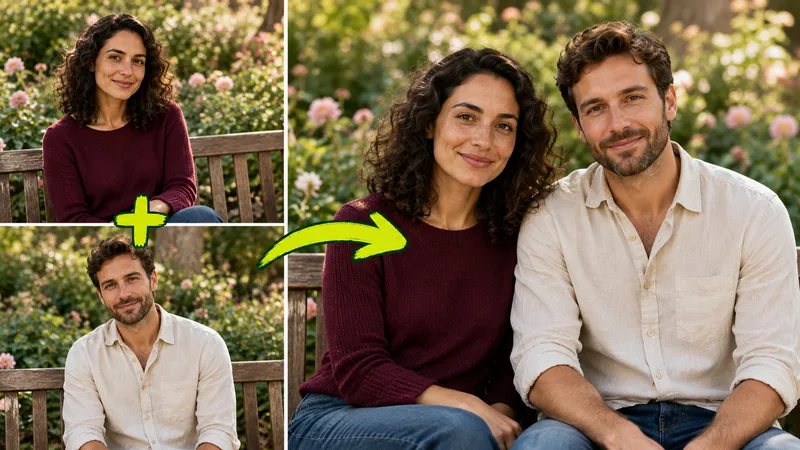
If your goal is having two individuals photographed separately appear standing together in a single believable room, or transporting a foreground subject into an entirely new scenery, layout stitching will not solve the problem. That objective requires recalculating lighting, shadows, and perspective through generative synthesis. You can accomplish that using our AI Image Combiner, which unifies up to four reference photos into an entirely fresh composition. Explore our photo blending guide and guide to combining images with AI for in-depth prompt blueprints. Keep in mind that generative AI redraws imagery and consumes usage credits, whereas regular side-by-side merging in our Merge Images tool is instantaneous and completely free.
Frequently Asked Questions
Ready to merge your images?
Drop your photos in, pick a layout, and merge images into one clean picture.