

Base Photo

People to add

Optional
0/4096

Add Person to Photo

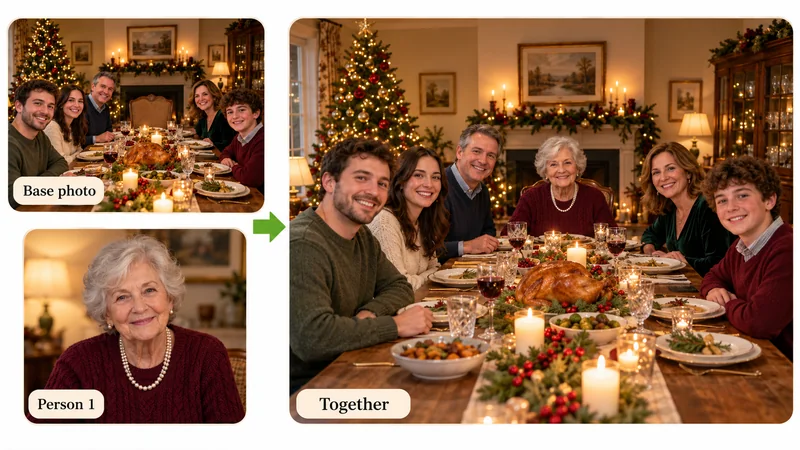
Did someone miss the group photo, or were you stuck behind the lens? Upload your base picture and clear portraits of the missing people. Our AI balances ambient lighting, perspective scale, and contact shadows so newcomers blend in naturally without that awkward sticker look.

Wedding photo comparison: the original bride and groom, a separate portrait of the mother, and the result with her added beside the bride

What Does It Mean to Add a Person to a Photo with AI?

Manually photoshopping someone into a picture requires tedious manual cutout, color grading, scaling, and painted shadows, and small slips leave blurry edges or floating figures. Quick mobile sticker lift-and-drop tools are even worse, pasting mismatched lighting and flat perspective that instantly look fake. When you add a person to a photo using our AI compositing engine, the scene is re-rendered holistically. The system calculates light direction, ambient color temperature, and perspective depth from the original shot, organically scaling the new person, adapting clothing textures, and casting realistic contact shadows where feet meet the ground or arms touch adjacent shoulders. You keep the scene and the people you photographed, and the missing person feels like they were truly there.

Three-panel composite comparison: family picnic base photo, grandfather's solo portrait, and the photorealistic result with him sitting naturally on the picnic mat
Simple Workflow

How to Add Someone to a Photo in Three Steps

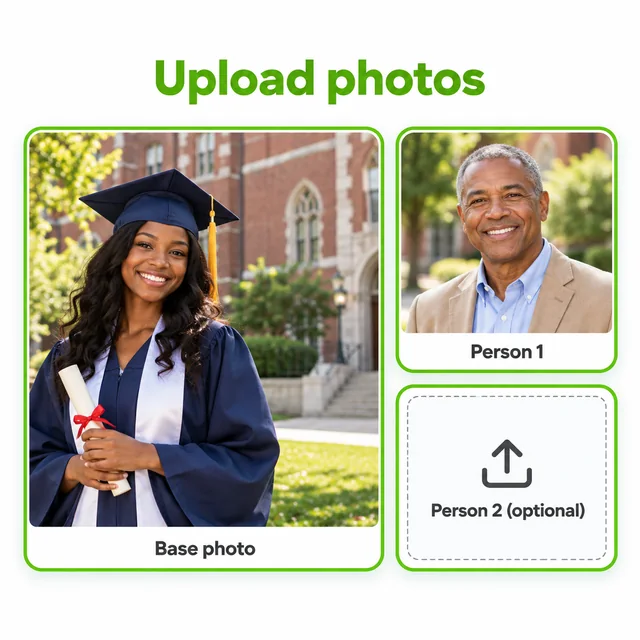
  1. Workspace showing campus graduation photo uploaded as base photo and father's portrait added as Person 1
    Step 01

    1. Upload base photo and portrait

    Start with your group picture or scenic backdrop as the base photo. In the Person 1 slot, upload a clear solo picture of the missing individual. Clear daylight portraits with visible facial features produce the most lifelike results. You can also add a second person if desired.

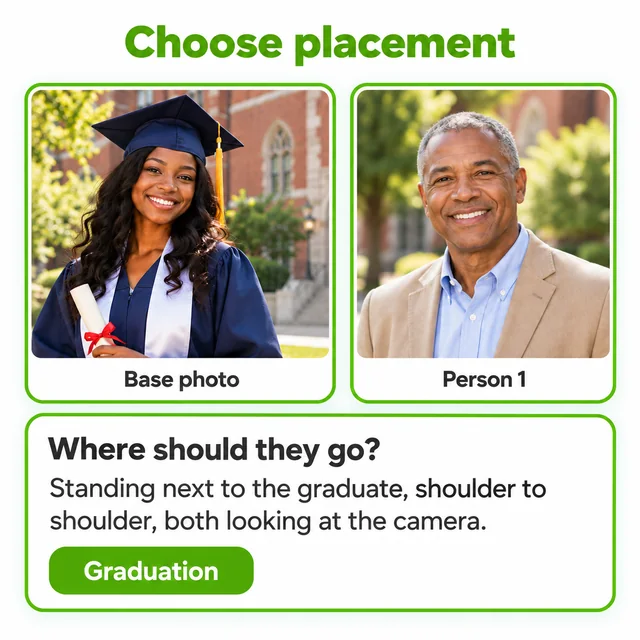
  2. Graduation preset selected with custom placement note specifying standing shoulder to shoulder
    Step 02

    2. Define placement and pose

    Select a quick preset like Graduation or Group Photo, or specify where they should go in plain words (e.g. "standing shoulder to shoulder next to the bride"). Leave blank to let the AI automatically locate the best natural spot.

  3. Finished composite photo of the graduate and her father side by side on campus with a download button
    Step 03

    3. Re-render, compare, and download

    Click generate and let the AI balance lighting, perspective, and ground shadows. Inspect face likeness and proportions against the original photo, and download your finished picture when it looks right.

Common Scenarios

Four Meaningful Ways to Complete Your Photos

Designed for the most common real-world moments where someone important was missing from the shot.

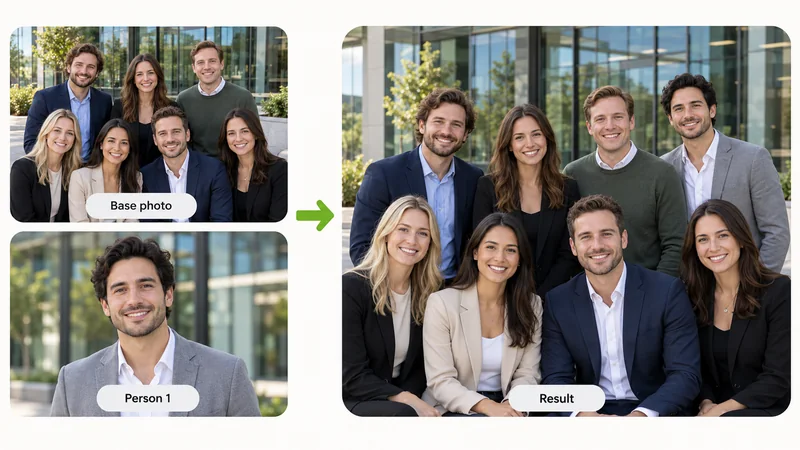
Corporate team of eight coworkers outside their office building with a missing colleague naturally added to the back row

Add Missing People to Group Photos

Whether a cousin got stuck in holiday traffic or a coworker was sick on team picture day, simply upload the group shot with their solo photo. The AI matches their height, posture, and clothing tone to fit smoothly into the crowd.
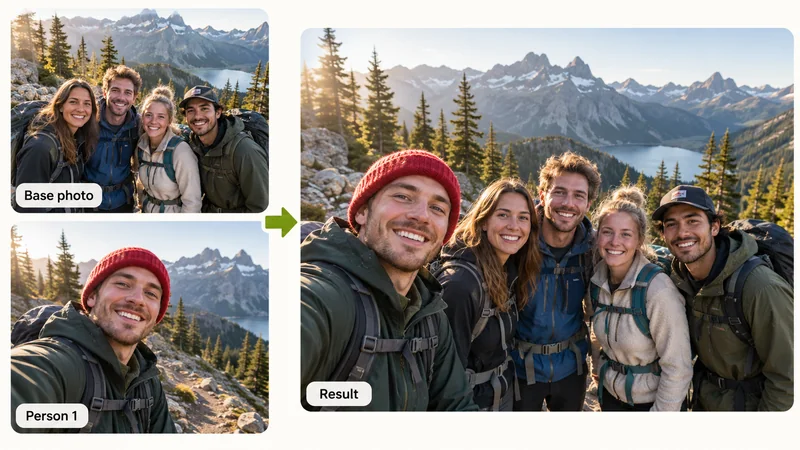
Friends hiking on a mountain trail with the photographer friend seamlessly placed in the front of the group

Bring the Photographer Back into the Shot

The person behind the camera is missing from nearly every vacation album and family celebration. Combine the group photo with a matching selfie from the same day so lighting, outfits, and weather align effortlessly.

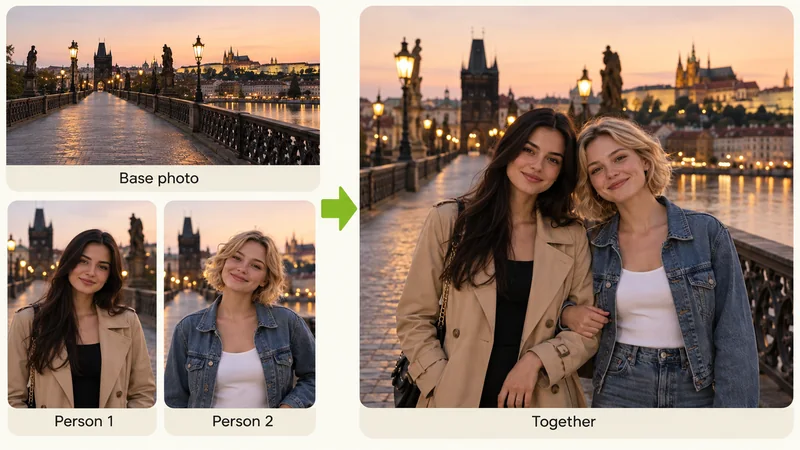
Two long-distance friends standing together on a sunset city bridge, synthesized from a scenic backdrop and two separate portraits

Combine Two People into One Shared Memory

Perfect for long-distance couples or close friends living across different cities who lack recent portraits together. Choose an attractive backdrop, upload both solo photos, and generate a cohesive, side-by-side memory.

Family gathered around a holiday dinner table with a late grandmother seated gracefully at the head of the table

Meaningful Memorials for Departed Loved Ones

During milestone weddings, graduations, or holiday dinners, families often wish late grandparents could be there. Select a cherished portrait that captures their true spirit and place them peacefully beside loved ones as an enduring family keepsake.

Practical Advice

Three Pro Tips for Flawless Photo Compositing

Pairing quality source photos with clear placement instructions prevents most redos.

Match ambient lighting and camera angles

A harsh sunny outdoor selfie can clash when inserted into an indoor dim dinner picture. Select portraits with similar lighting directions and head orientations, avoiding dark sunglasses, heavy filters, or blurry crops.

Specify a neighbor, pose, and physical contact

Describing "standing next to the bride, slightly behind her shoulder with one hand touching her arm" helps the AI deduce realistic scale, perspective depth, and natural limb placements.

Inspect ground shadows and overlapping edges

Zoom in on feet, floor transitions, and shoulders to ensure clean contact shadows rather than hovering bodies. If proportions feel slightly off, tweak your placement note and re-generate.

Why It Works

Why Use an Add Person to Photo Tool Instead of Photoshop

Skip hours of painstaking pen-tool cutouts, color matching, and shadow drawing with intelligent visual synthesis.

Your original photo stays the base

The composition, background and the loved ones already in the picture are used as the reference for the result, so you build on the moment you captured instead of starting over.

Authentic facial likeness and personal identity

Facial structure, skin complexion, hair texture, and distinct features are faithfully preserved from the uploaded portrait, ensuring the person looks unmistakably like themselves.

Automatic light direction, scale, and contact shadows

Say goodbye to floating sticker syndrome. The AI harmonizes color temperature, highlights, perspective vanishing points, and ground shadows to make the composite visually convincing.

Browser-based convenience with free starter credits

New accounts receive complimentary credits to test photo blends directly in mobile and desktop browsers, with no software downloads or credit cards required. Free results carry a small watermark, and a paid plan removes it.

Complimentary credits for new accounts

Add Person to Photo and Complete Every Memory

Upload your base photo, add the missing individual, and see them side by side.

Frequently Asked Questions

Everything you need to know about adding people to photos, free credits, iPhone instructions, and preserving existing faces.