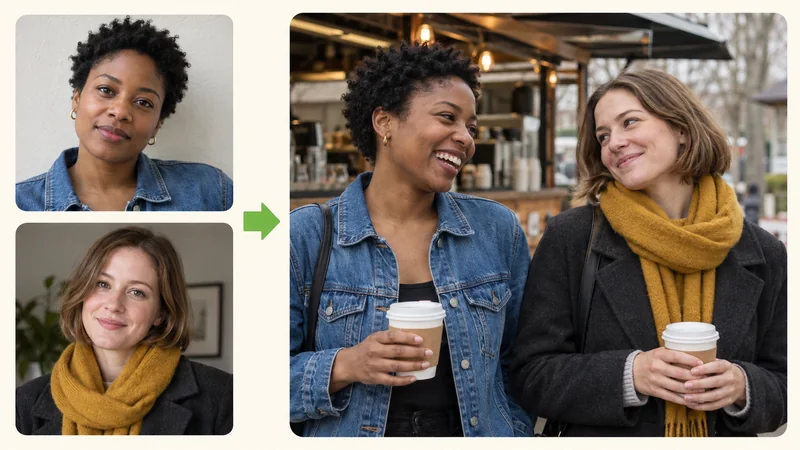
Long-distance best friends
When your last mutual snapshot is years old, upload recent solo photos and place yourselves in a place you both love, like your favorite weekend cafe. A heartwarming surprise for birthdays or holiday greetings.
Two portraits, one per person
Not sure what to write? Try an example:
Wish you had a real picture together? Upload one portrait for each person, describe the scene, and create a natural new photo with matching light and consistent perspective. Perfect for long-distance friends, siblings, and family.

Many people who share close bonds still lack a proper photo together: a best friend living abroad, a sibling you see once a year, or a parent in another time zone. Traditional photo collages merely set two pictures side by side, and manual cut-and-paste editing leaves clashing shadows and awkward cutouts. This tool takes a smarter approach. You upload two separate portraits, which serve as visual references for facial likeness. Our model then renders an entirely new photo placing both people together in the setting you choose. Lighting, angles, clothing, and background are unified from scratch, allowing you to combine photos taken years or continents apart into one keepsake. Compare the result with your source photos and generate again when someone looks off.

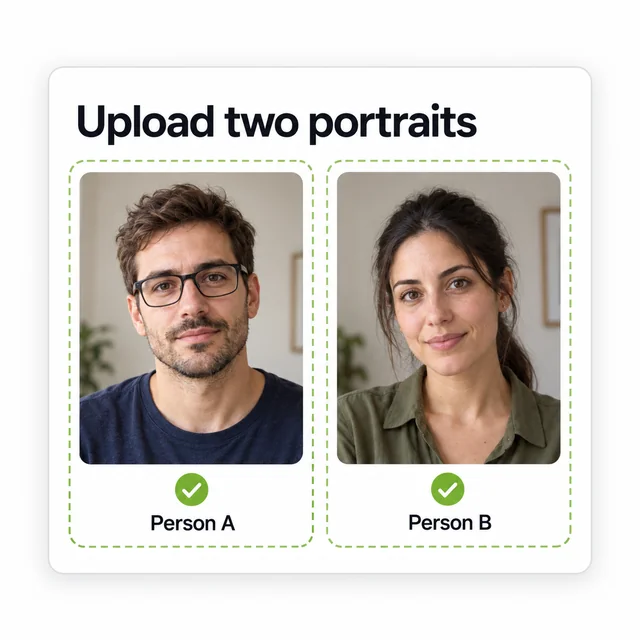
Both slots are required: place one person in Person A and the second in Person B. Clear, well-lit shots from the shoulders up preserve the sharpest facial likeness.
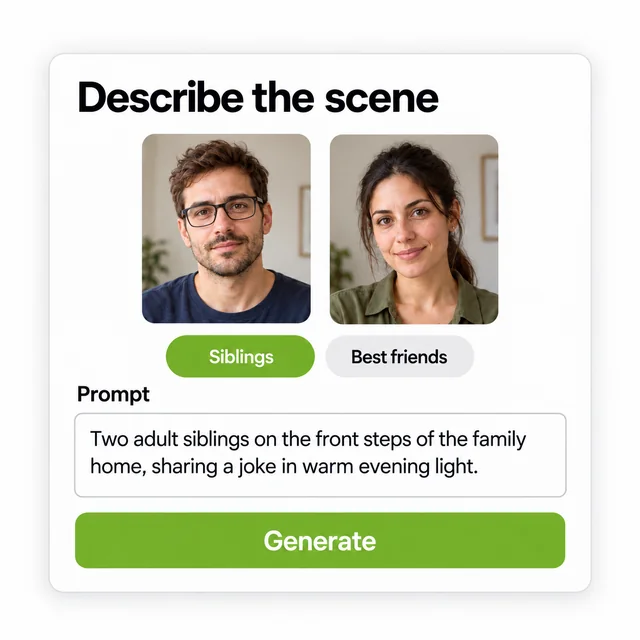
Select a preset like Best Friends or Siblings, or type your own prompt: describe where they are, what they are wearing, and how they interact. Click the @ tag on a portrait to give individual styling cues.

Select your preferred aspect ratio and generate. Compare the faces against your uploaded references, then download the version you like or change the prompt and try again.
Four everyday situations where people belong in the same frame, even when meeting in person is difficult.
When your last mutual snapshot is years old, upload recent solo photos and place yourselves in a place you both love, like your favorite weekend cafe. A heartwarming surprise for birthdays or holiday greetings.
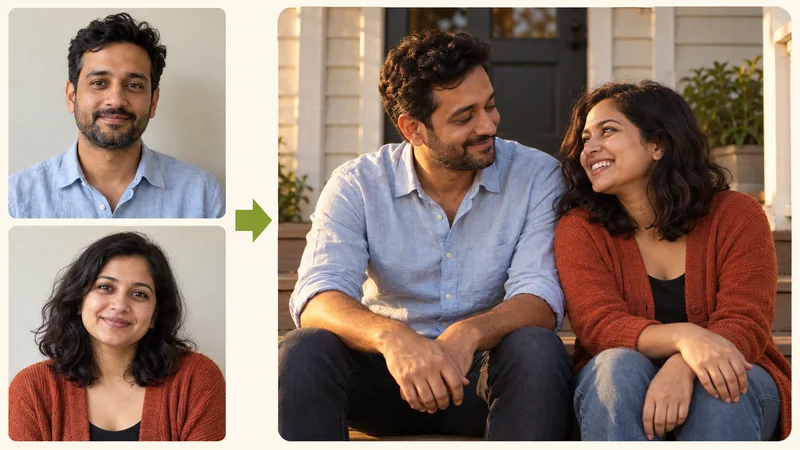
Family albums often have plenty of childhood photos, but few recent ones after leaving home. Combine two current portraits on the front porch of the family house for a cherished framed gift to parents.
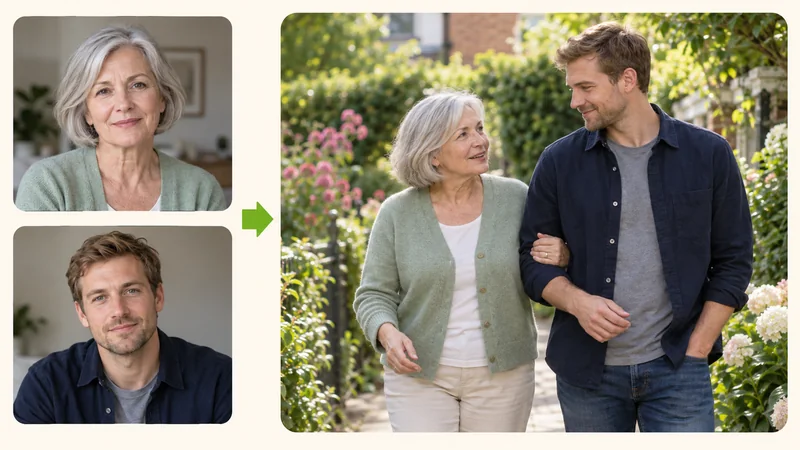
While waiting for the next holiday visit, create an authentic picture of everyday connection. Grounding the scene in a familiar setting, like cooking in the kitchen or walking in the garden, brings warmth and comfort.
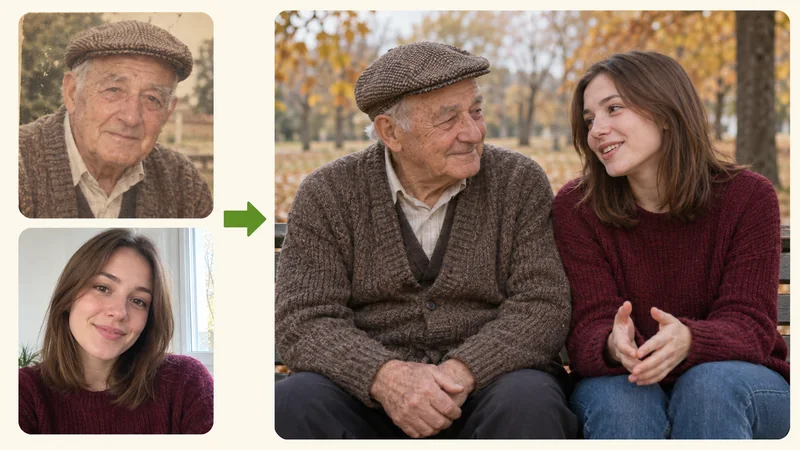
Source portraits do not need to share the same resolution, lighting, or era. A scanned vintage family print and a modern smartphone portrait can unite in one timeless, harmonized scene.
Believable results depend on quality source portraits and clear spatial cues. Keep these simple guidelines in mind.
Clear shots with visible facial contours and natural light yield the highest fidelity. Avoid heavy artistic filters, dark sunglasses, and cropped group shots where other faces might bleed into the render.
Specifying 'two brothers' or 'college friends' guides natural, comfortable body language. Naming distinct outfits for each person also prevents both from wearing identical garments.
Check where hands, shoulders, or arms meet, along with relative height. If one person appears out of proportion, simply clarify who is taller in the prompt and generate again.
A standard collage just puts two frames next to each other. Here, you get one unified, candid photo where both people genuinely share the moment.
Both people are drawn into the same scene with the same light and depth of field, which helps them look like they belong in the same place.
Separate upload slots keep each portrait clearly assigned. You can refer to either person in the prompt and swap a portrait without starting over.
New accounts receive free credits to try the tool. The generate button shows the credit cost before you start, with no hidden fees.
Upload a portrait of each person, choose your setting, and see them together in one candid, photorealistic picture.
Everything you need to know about photo requirements, facial likeness, credits, and consent.