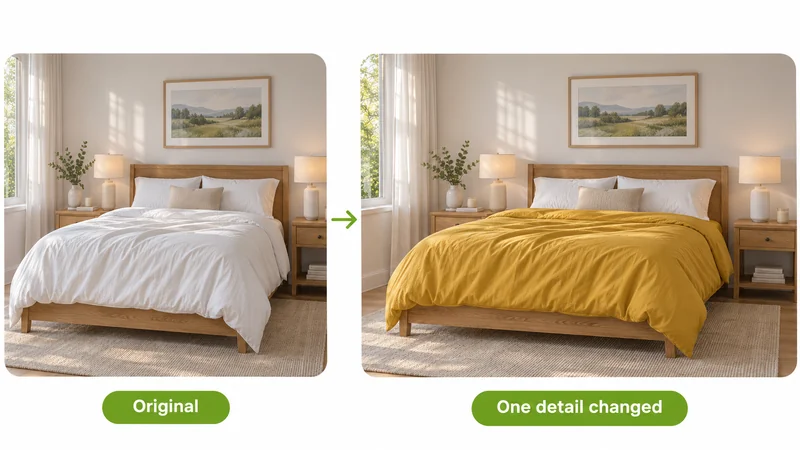
Precise photo editing: change one detail
Swap a duvet color, replace furniture or update a sign while the rest of the photo stays as it was. Name the object, describe the change, and list what must not move.
Models
Images (Optional)
Not sure what to write? Try an example:
Upload a photo to edit any detail with GPT Image 2.5 without redrawing the whole scene—keep faces and products recognizable, start free with trial credits, and export up to 4K.

GPT Image 2.5 is OpenAI's state-of-the-art image generation and editing model, released on September 8, 2026 and powering ChatGPT Images 2.5. Unlike earlier models that redraw the entire image, it allows pinpoint edits on specific areas, preserves human likeness and product features from reference photos with remarkable fidelity, renders crisp in-image text, and generates up to 50% faster. You can run it directly on this page, starting from your own photo or from a text prompt alone.
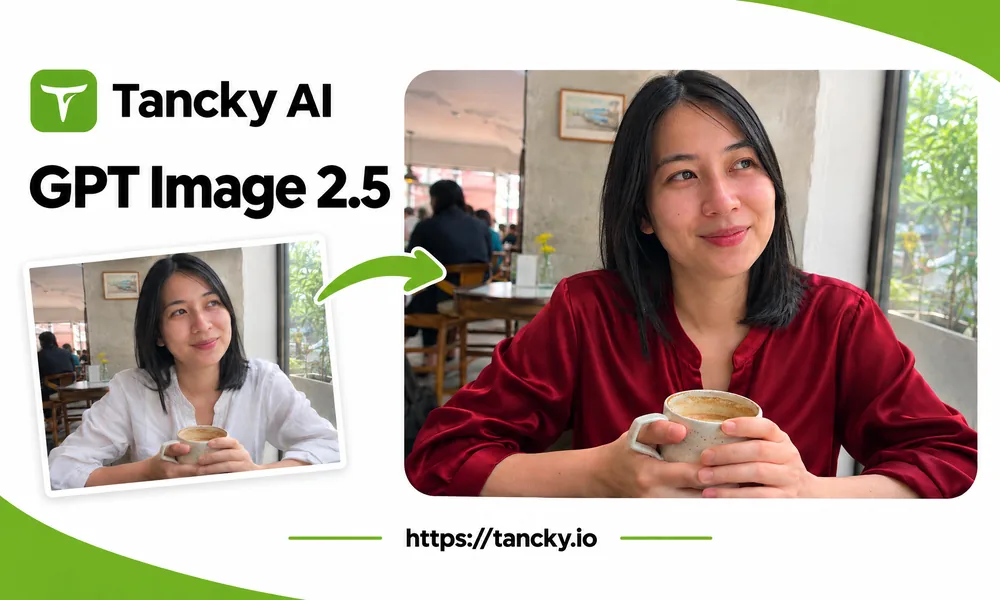
Earlier image models often redrew the whole picture for a small fix, lost a person's likeness or garbled the words on a sign. Here is what this release improves and how it shows up when you edit.
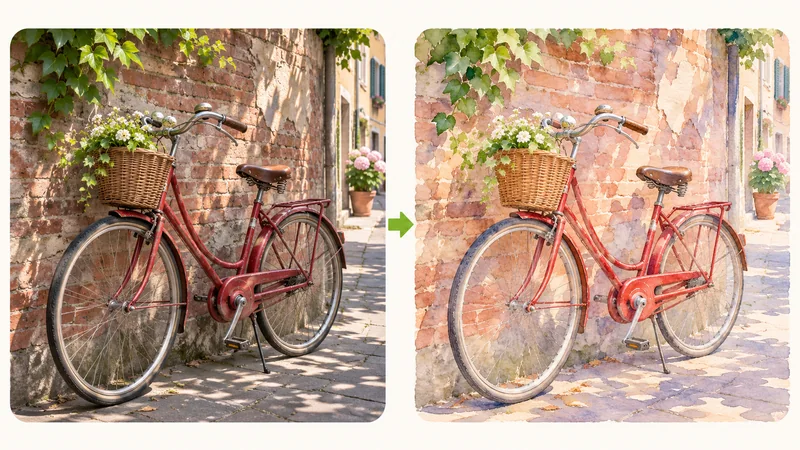
Ask for one change, such as a new chair color or a different headline, and the model keeps the subject, composition and lighting around it, even with complex subjects and busy backgrounds.
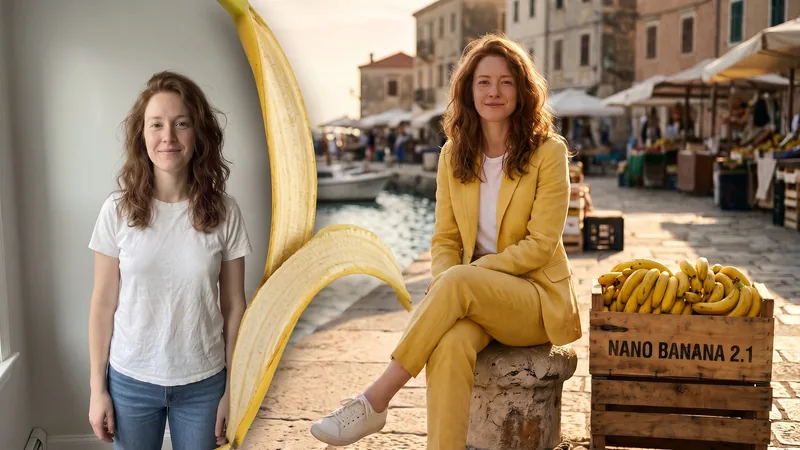
People, pets and products from your reference photos stay recognizable when they move into a new scene or visual style, with distinctive features and textures kept intact.
Results show richer textures and more believable light, which helps product shots, interiors and portraits read as real photographs.
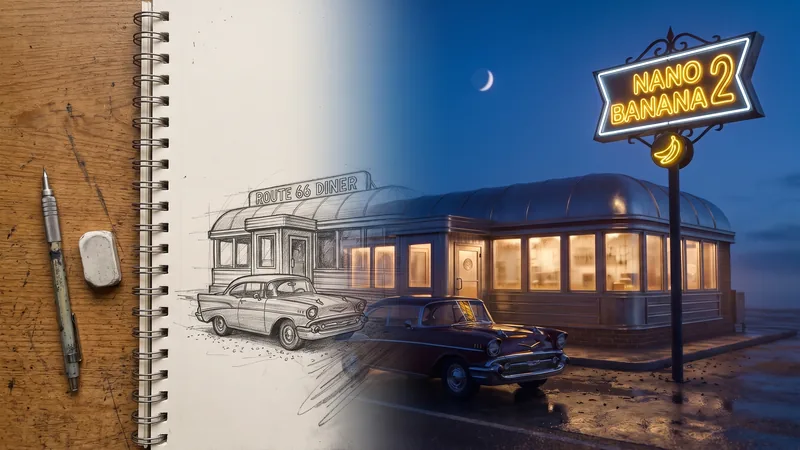
Headlines, labels and menus render cleanly when you quote the exact words. Structured images such as posters and infographics follow the layout you describe more closely.
Images come back up to 50% faster than with the previous generation, so testing a prompt, adjusting it and running it again takes less waiting.
Choose 1K, 2K or 4K, a ratio from square to 21:9 widescreen or auto to follow your photo, and low, medium or high quality. Low is quick for drafts; high adds finer detail for final images.
Each example pairs one model strength with a task you can run in the editor above.
Swap a duvet color, replace furniture or update a sign while the rest of the photo stays as it was. Name the object, describe the change, and list what must not move.
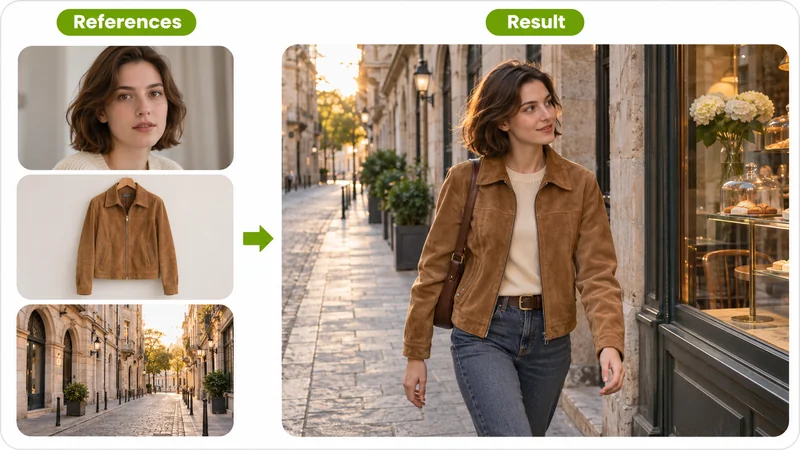
Upload a person, a jacket and a street, then refer to them as image 1, image 2 and image 3, or type @ to pick one. The model combines them into one shot with matching light and perspective.
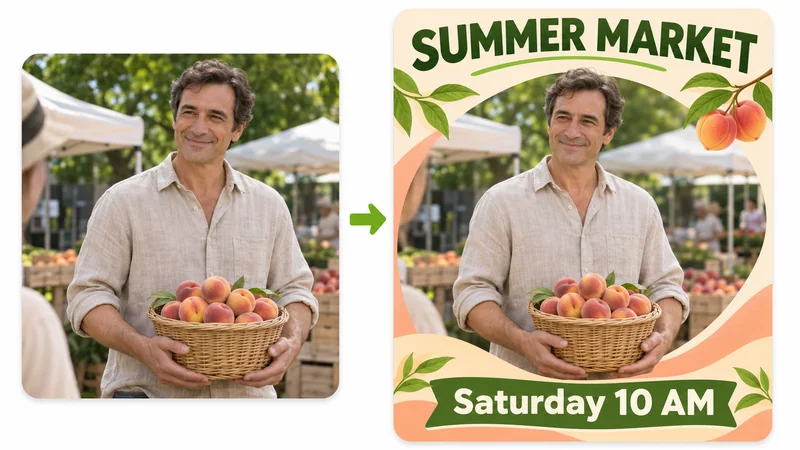
Turn a photo into an event poster, a menu board or a thumbnail. Quote the words you need and say where they go, and the model sets them into the design.
Add the photo you want to edit, plus any extra references for style, clothing, products or background. Uploads are numbered image 1, image 2 and so on.
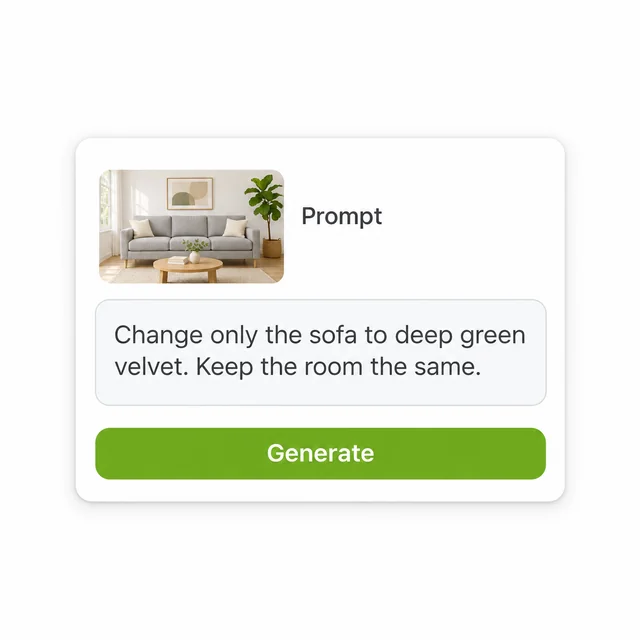
Describe the change and what to keep. Pick an aspect ratio, a 1K, 2K or 4K resolution and a quality level; the generate button shows the credit cost before you run it.
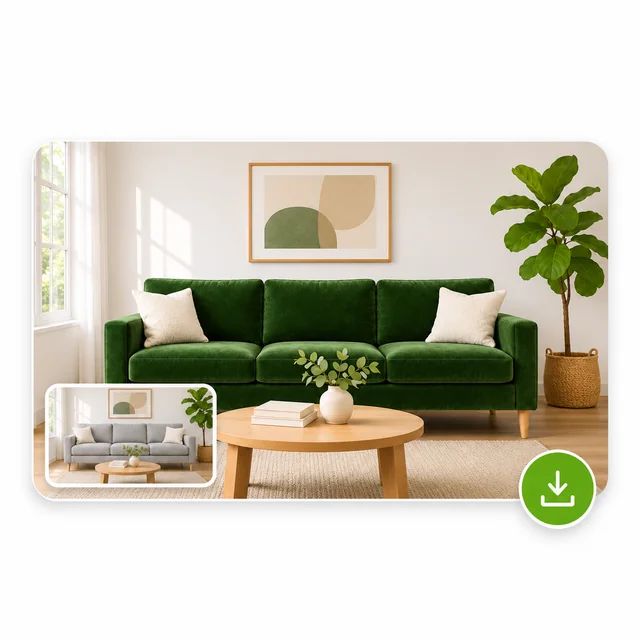
Zoom in to check faces, edges and text. Adjust one line of the prompt if something is off, or use the edit bar to upscale, remove the background or expand the image before you download.
Tasks where precise edits and reference fidelity save the most time.
Place one product photo into several lifestyle scenes while its label, shape and colors stay exact.
Make ad visuals, thumbnails and story covers with short on-image copy, sized for each platform.
Change an outfit, a background or a room detail in your own photos and keep faces recognizable.
Upload a picture, describe one change and see how the model handles it. New accounts get trial credits.
Answers about the model, its capabilities, commercial use, pricing, and prompt tips.