Models

Images (Optional)

Prompt
0/4096

Not sure what to write? Try an example:

Seedream 5.5

Powered by ByteDance's newest Seedream 5.5 model: generate true transparent backgrounds, modify specific details while keeping the rest untouched, and render clean poster typography—no manual masking or full scene redraws, up to 2K export.

Giant clear glass letters reading Seedream 5.5 floating above a calm lake at sunrise, with soft blue and teal light passing through them.

What Is ByteDance Seedream 5.5?

Seedream 5.5 is the image generation and editing model from ByteDance's Seed team, released in November 2026 as the successor to Seedream 5.0. Where most image models stop at a finished picture, this one is aimed at the work that comes next. It can deliver a product, logo or sticker on a real transparent background, so you skip the cutout step before placing it in a listing or a layout. It can change the one thing you name, a sofa, a sweater, a sign, while the faces, walls and light around it stay as they were, which matters when a client or a customer is comparing versions. It also follows exact wording for headlines and labels more closely and lets you set the light of a scene in plain words. On this page you can start from a prompt or your own photos, check the idea at 1K, and download the 2K version you keep.

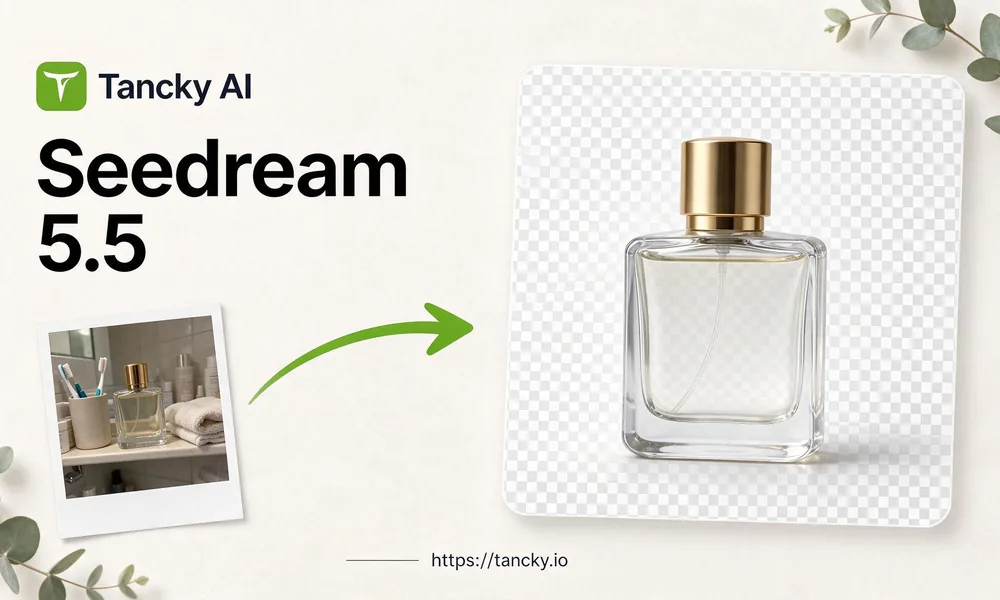
A phone photo of a glass perfume bottle on a bathroom shelf turned by Seedream 5.5 into a clean cutout on a transparent background, with the Tancky AI logo and the site address.
What's new

What's New in Seedream 5.5

The usual problems with AI images show up after generation: a background you have to erase, a whole photo redrawn because you asked for one change, a headline with a typo. This release targets those steps.

A real transparent background

Ask for a transparent background and the subject comes back without a backdrop. Glass, smoke and soft shadows can stay partly see-through, so the cutout looks natural on any color.

One change, nothing else moves

Name the part to change and the rest of the image keeps its pixels: same faces, same room, same framing. You can stack several edits round by round.

Headlines spelled the way you wrote them

Short headlines, prices and labels come out more reliably when you put the exact words in quotes and say where they go.

Light you can describe

Turn a daylight product shot into a warm evening scene or a soft studio look by naming the light source, without reshooting.

Real jobs

Seedream 5.5 Image Editing Examples

Three tasks people usually split across a photo editor, a background remover and a design app.

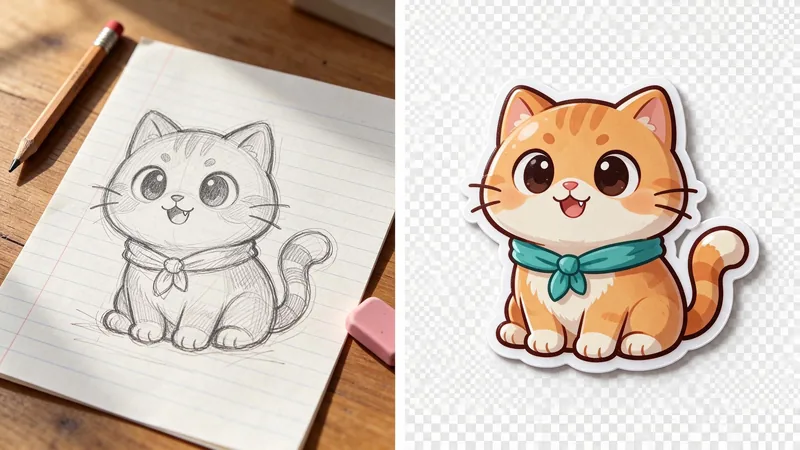
A pencil sketch of a cartoon cat on notebook paper next to the same cat as a glossy die-cut sticker on a transparent checkerboard background.

From a sketch to a transparent background sticker

Upload a rough drawing of a mascot or logo idea and ask for a die-cut sticker on a transparent background. The result is ready for a sticker sheet, a print-on-demand mockup or a chat sticker pack, with no white box around it.
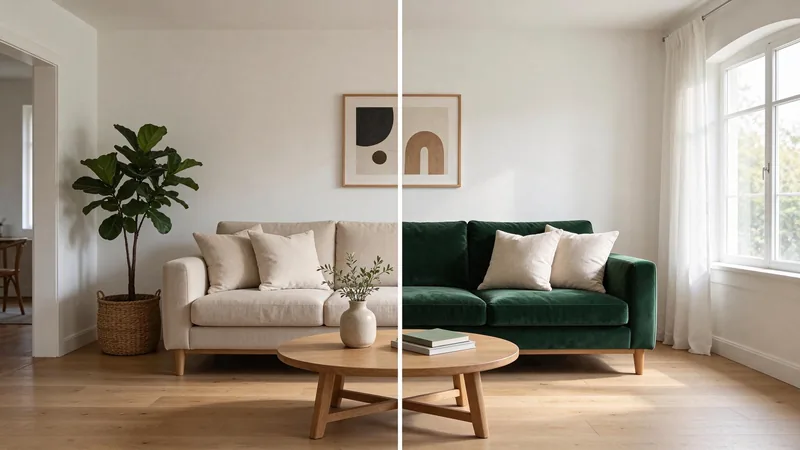
A living room with a beige linen sofa next to the same room where only the sofa has changed to dark green velvet.

Show a client one change in their real room

Interior designers and home sellers can upload the actual room and swap only the sofa, the paint or the rug. Because the walls, window and floor stay identical, the client judges the new piece instead of a different room.

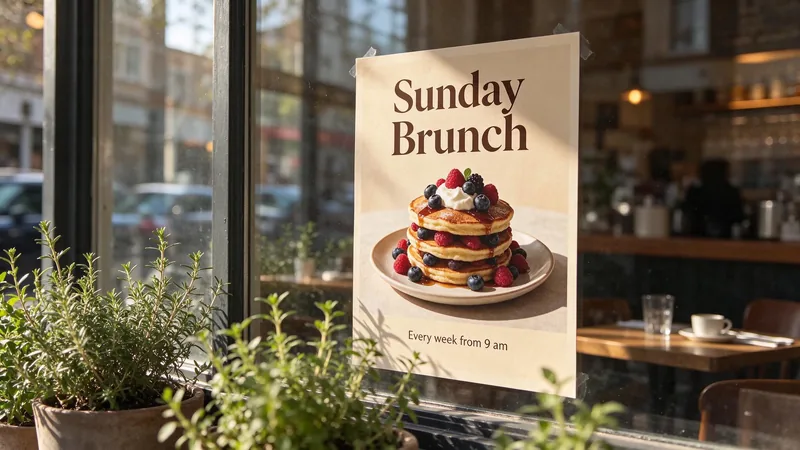
A printed cafe poster in a shop window showing pancakes with berries, the headline Sunday Brunch and the line Every week from 9 am.

Text in images for menus and posters

Cafes, shops and event hosts can describe the look and give the exact headline and one short line. Print it, post it, or use it as the draft your designer refines.

Three steps

How to Use Seedream 5.5 Online

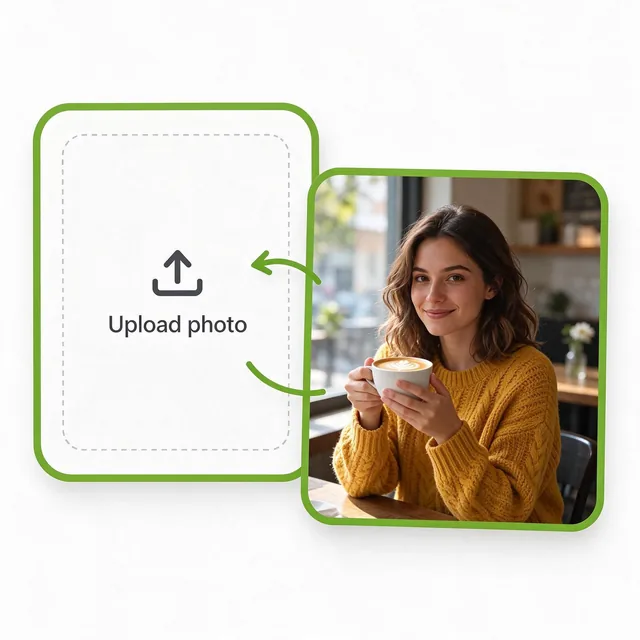
  1. A photo of a young woman in a mustard sweater at a cafe window being added to the upload area.
    Step 01

    1. Upload the photo you want to keep

    Add a clear photo, here a portrait taken at a cafe window. Skip the upload if you want to create an image from a prompt alone.

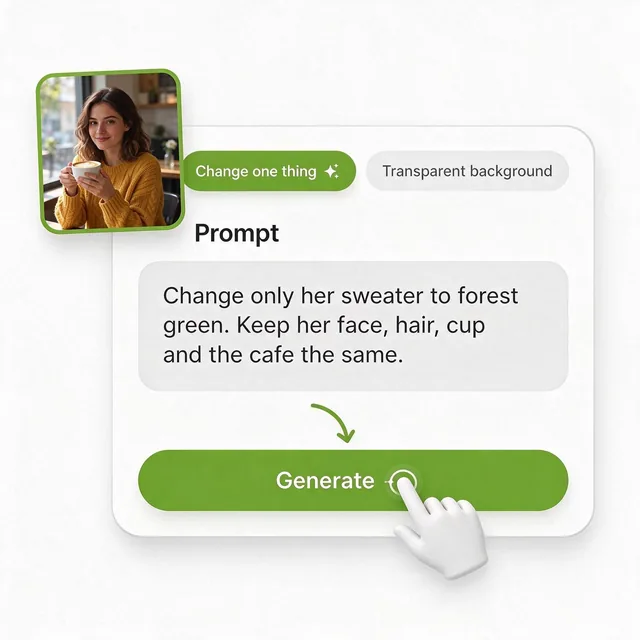
  2. A prompt card with the Change one thing preset selected and a prompt asking to change only the sweater to forest green.
    Step 02

    2. Say what changes and what stays

    Name one change, such as a forest green sweater, then list what must not move: her face, hair, cup and the cafe. Use 1K to check the idea.

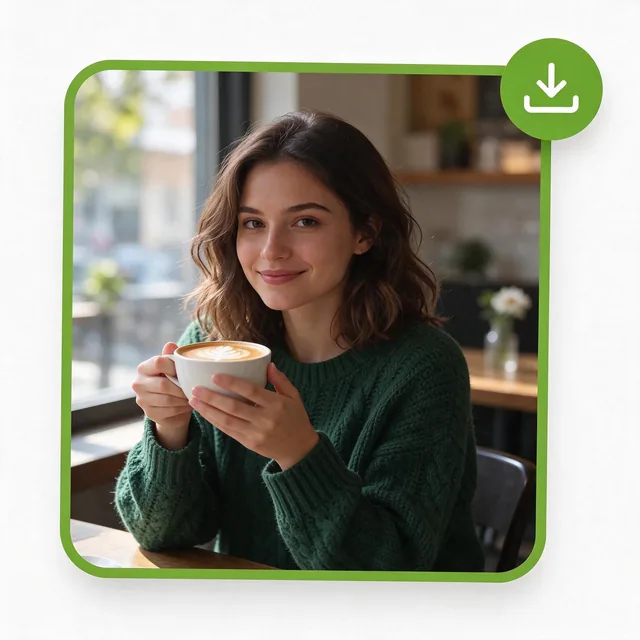
  3. The same woman at the same cafe window now wearing a forest green sweater, with a download button.
    Step 03

    3. Compare, refine, download

    Check that only the sweater changed. For a second edit, upload this result and write the next change. Switch to 2K for the version you keep.

Who it helps

Who Uses the Seedream 5.5 AI Image Generator

People who need an image they can place, adjust and publish, not only a picture to look at.

Online sellers

Turn phone photos of products into clean cutouts for listings and ads, and keep labels and logos intact.

Graphic designers

Generate icons, product shots and decorative elements that drop straight into a layout without masking.

Interior designers and home sellers

Show a new sofa, paint color or rug in the client's real room while everything else stays the same.

Sticker and merch makers

Turn sketches into die-cut stickers and print designs that come without a white box behind them.

Cafes and local shops

Make menus, window posters and promo graphics with the exact words and prices you need.

Social media managers

Make several versions of one image, each with a single change, for quick A/B posts and seasonal updates.

Transparent cutouts · One-change edits

Create and Edit Images With Seedream 5.5

Start from a prompt or your own photo, ask for a transparent background or a single change, and download an image you can use right away.

Seedream 5.5 FAQ

Practical answers about transparent cutouts, editing one detail, text, resolution, credits and commercial use.