Product merchandising & colorways
Preview brushed metal, ceramic, fabric, or colorway variations directly on existing product photography without setting up another studio shoot.
Models
Images (Optional)
Not sure what to write? Try an example:
Run Microsoft's flagship image editor and generator online to relight scenes, swap materials, update in-image text, and build fresh visuals while keeping your layout locked.

This diffusion model from Microsoft AI is built for controllable photo editing and high-fidelity text-to-image generation. Designed to read scenes with natural spatial awareness, MAI-Image-2.7 excels at surgical edits that leave untouched areas strictly intact: swapping product finishes, shifting overcast exteriors to golden hour, rewriting copy on packaging or storefront signs, and clearing creases from vintage prints. It also blends multiple reference photos into one unified shot or generates crisp scenes from text alone, accessible directly in your browser without cloud console setup.
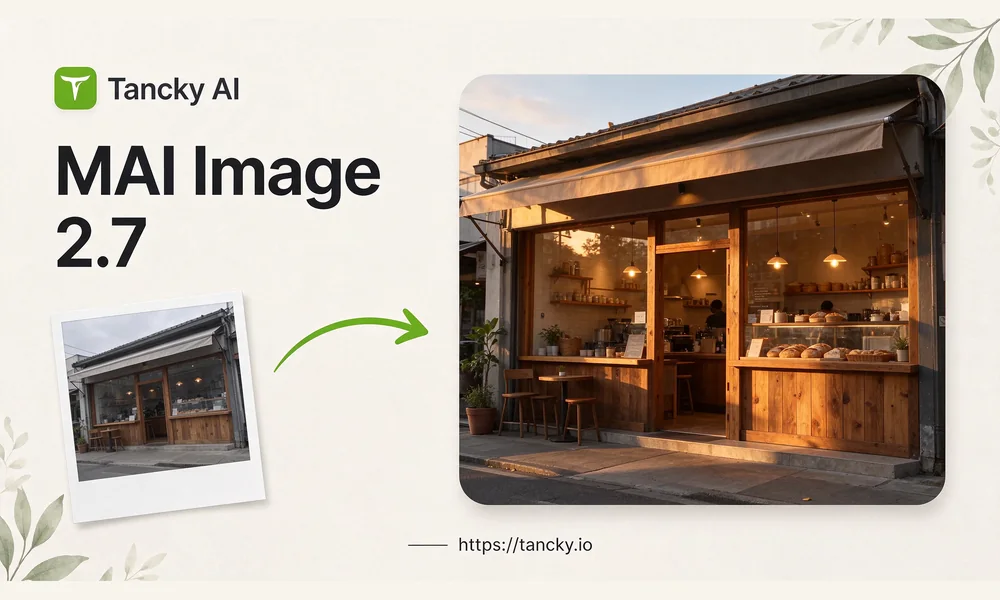
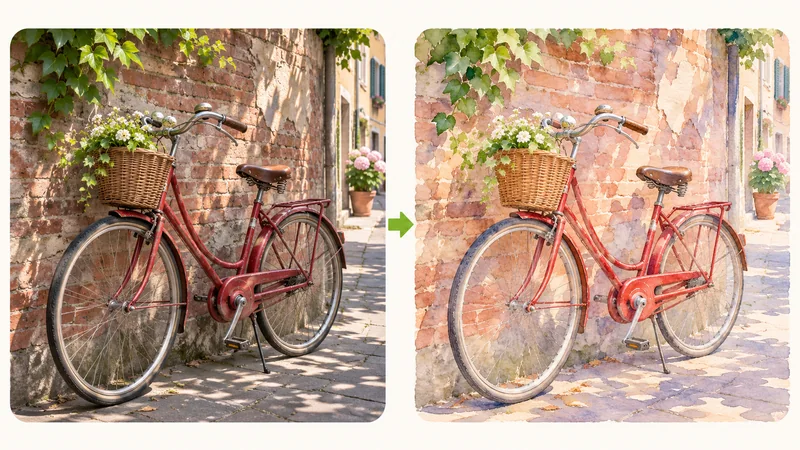
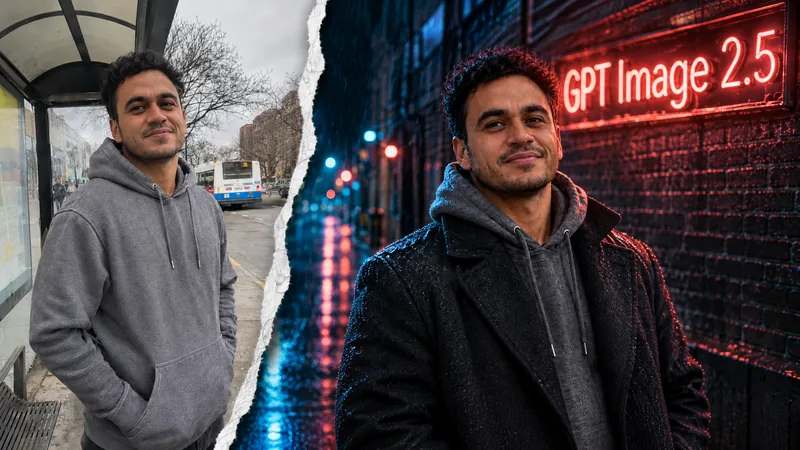
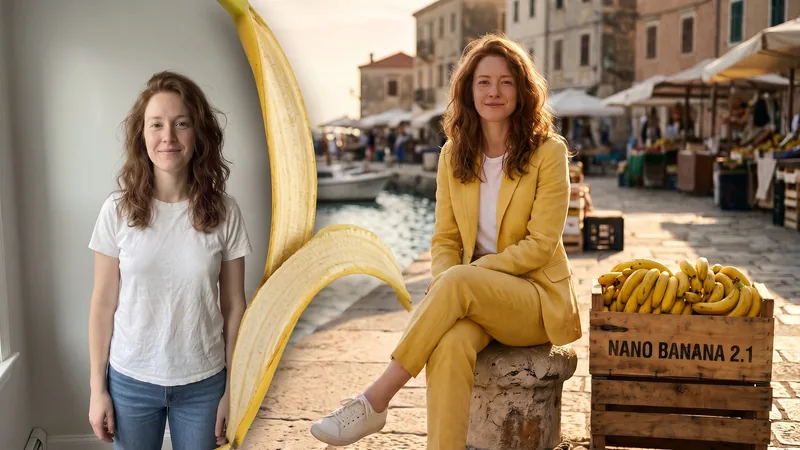
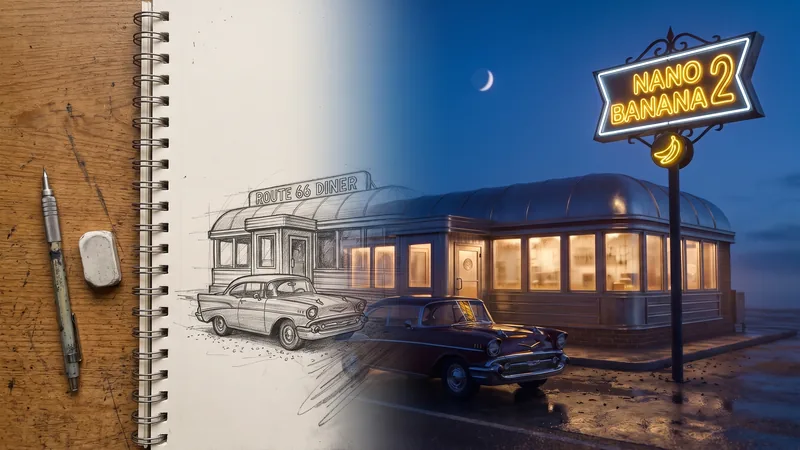
Drag the divider across four real editing tasks to see how geometry, perspective, and untouched details hold steady while lighting, materials, or text change cleanly.
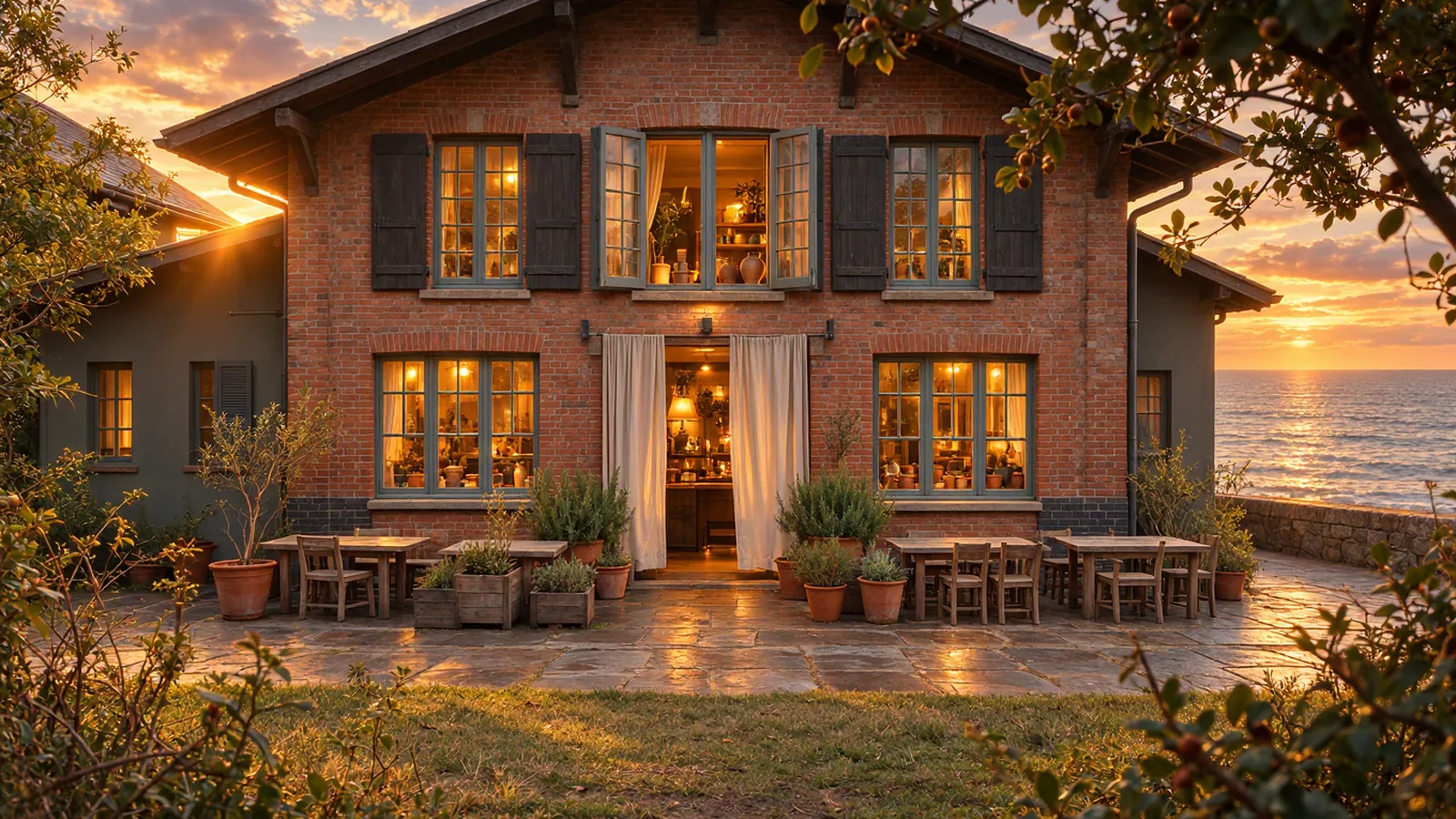
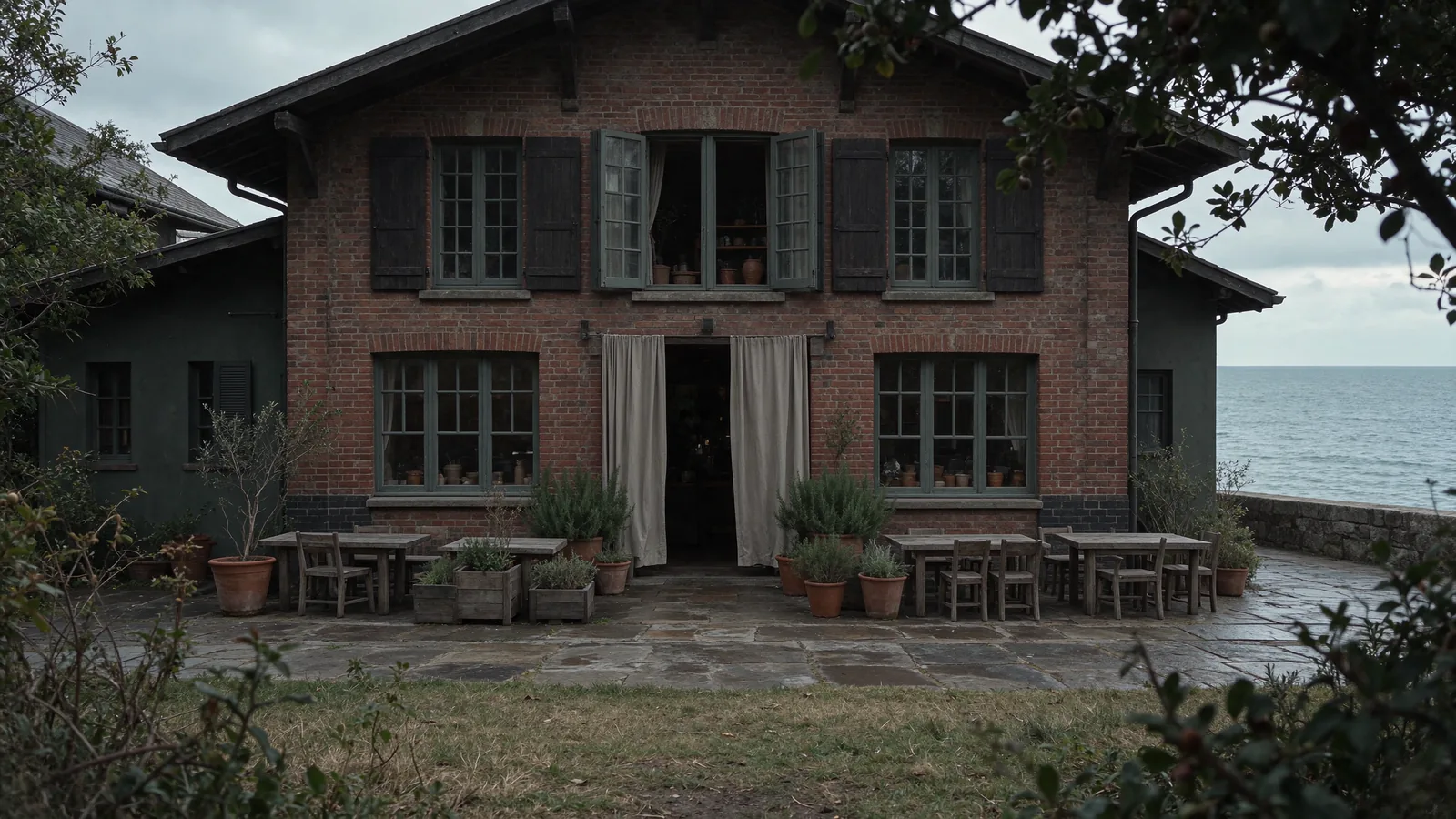
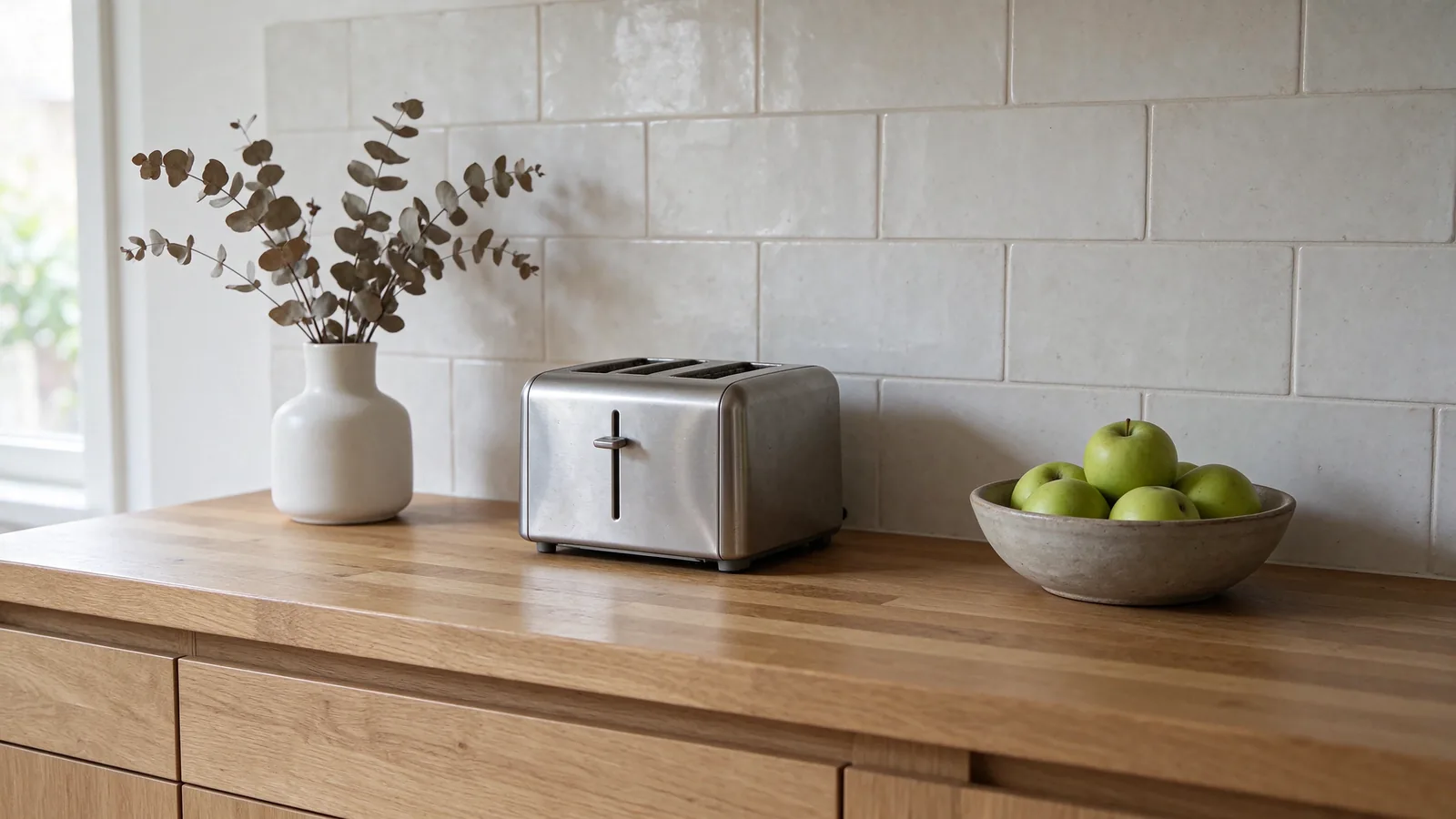
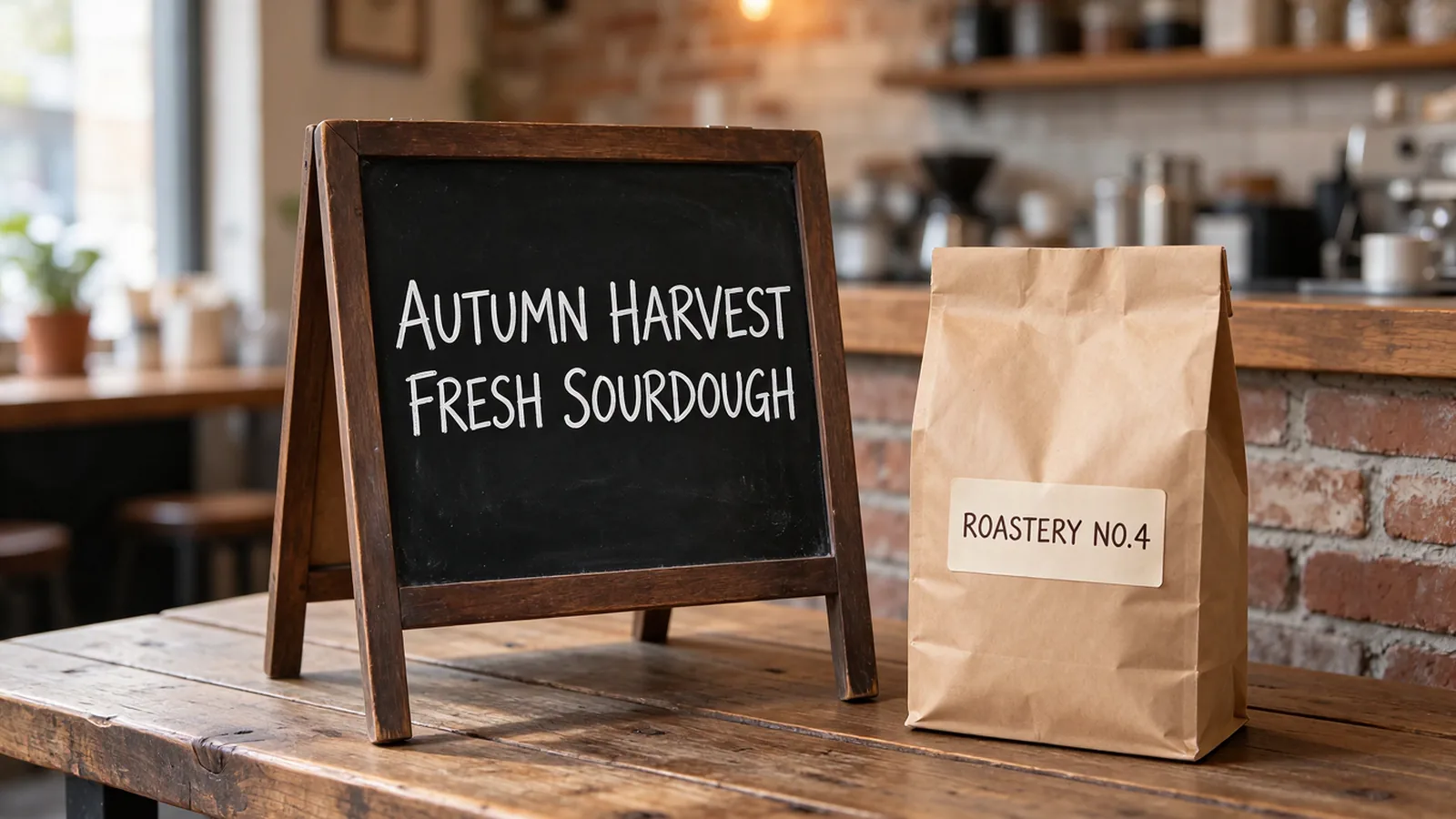
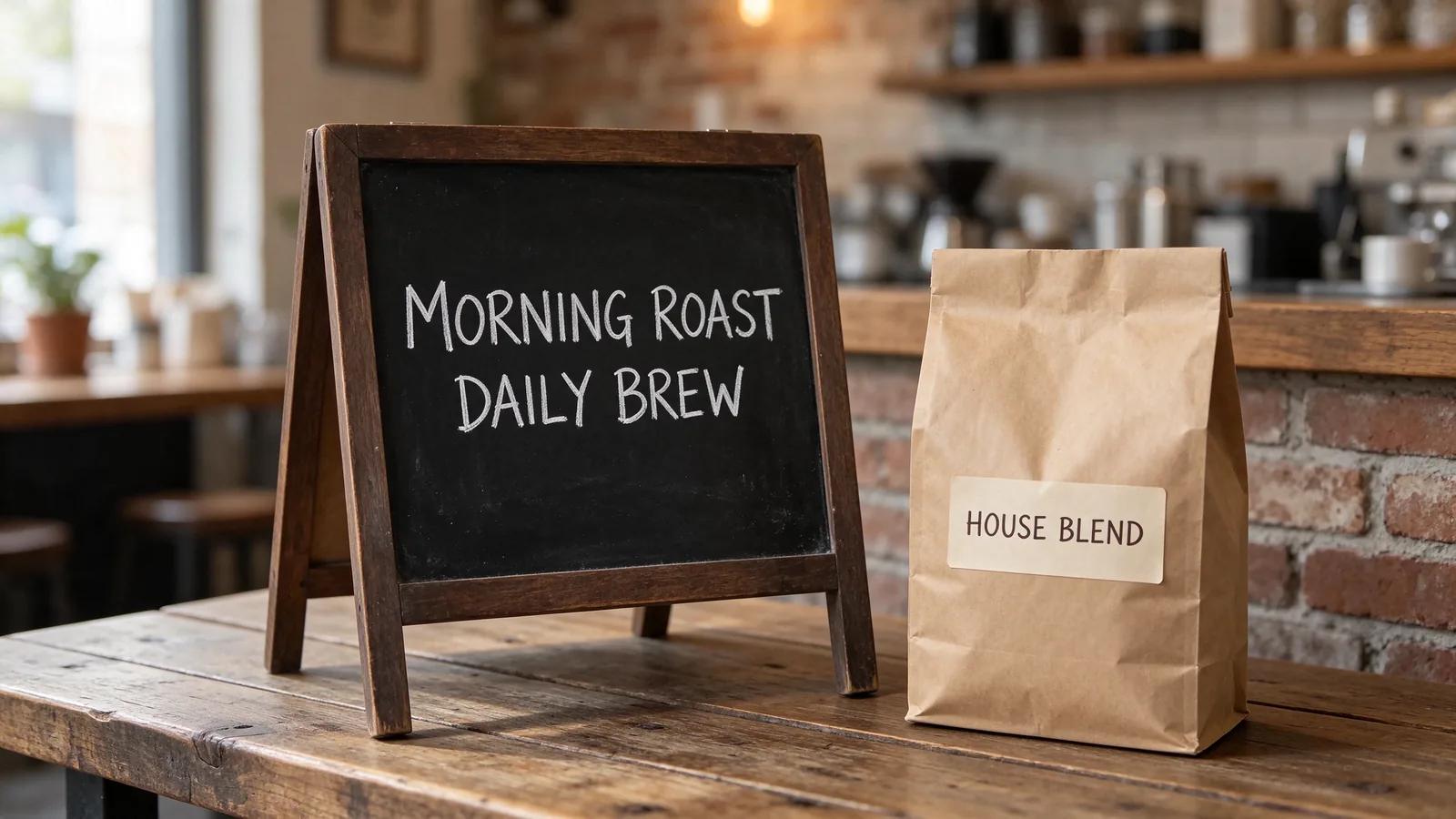

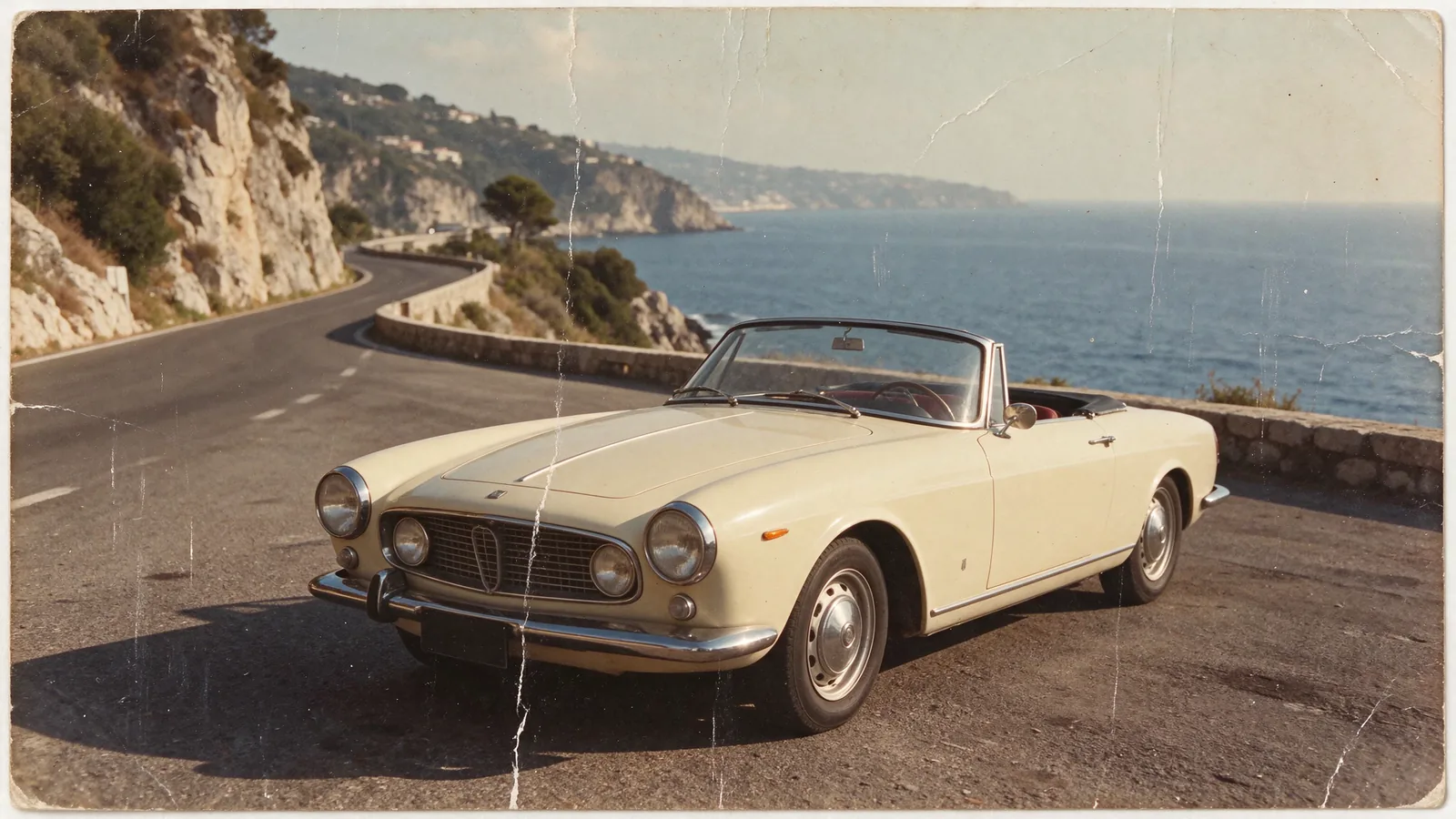
Turn a flat gray coastal afternoon into warm sunset light with glowing interior windows while every brick, shutter, and patio chair stays anchored.
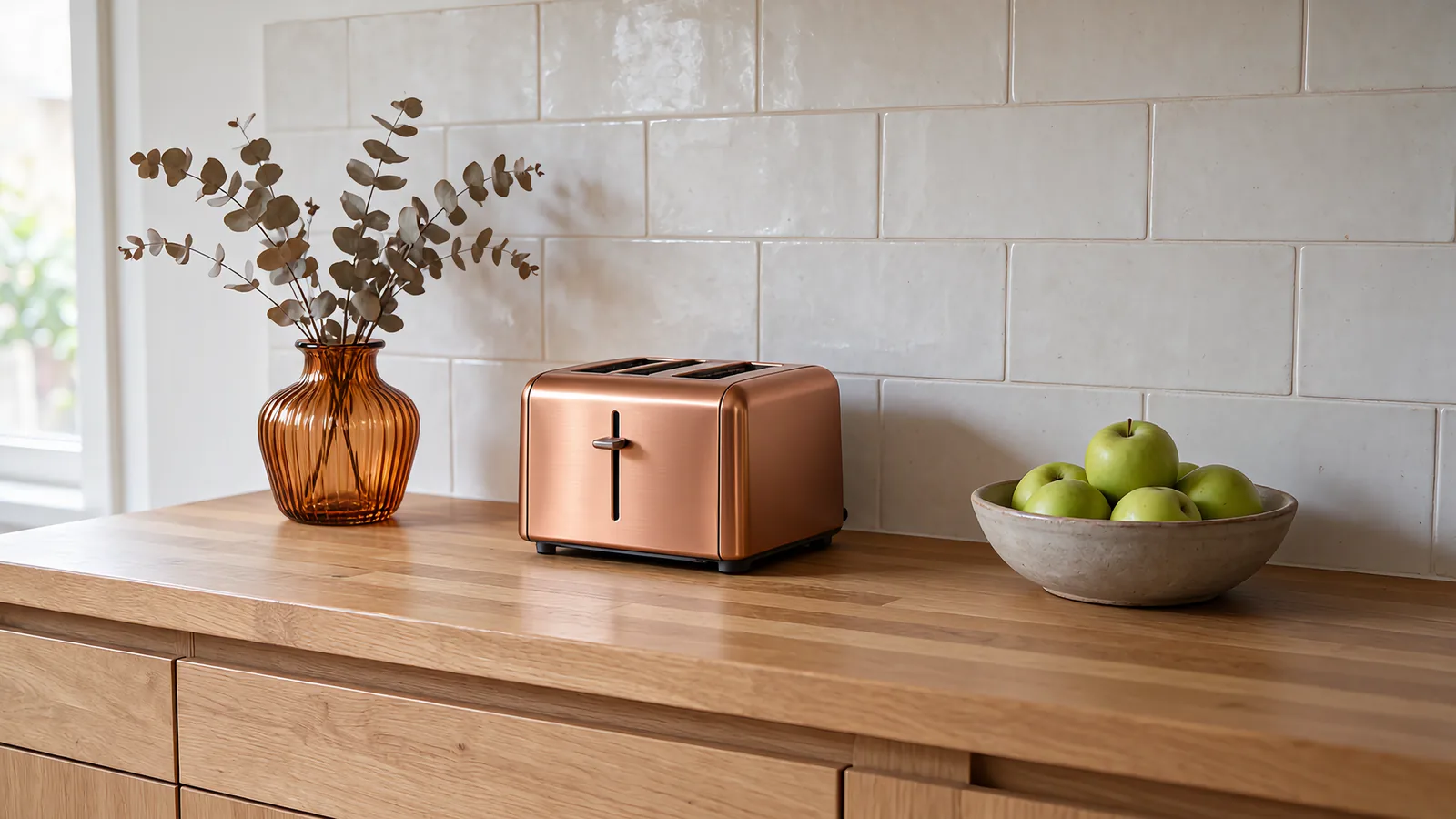
Replace a plain ceramic vase with fluted amber glass and trade an aluminum toaster for brushed copper while preserving oak wood grain, tiles, and fruit.
Rewrite chalk menu headings and printed coffee bag labels directly on real surfaces while matching original perspective, strokes, and paper creases.
Clear heavy fold creases, dust scratches, and faded yellowing from an aged coastal print while keeping the vintage car body and cliff line true.
Built around predictable control so iterative edits refine one detail at a time instead of reshuffling the whole frame.
Change a finish, color, prop, or wardrobe item with plain-language instructions while walls, camera framing, and untouched subjects remain stable across rounds.
Shift daylight direction, weather mood, and warm interior reflections across brick, glass, and stone without creating cutout edges or mismatched shadows.
Edit storefront signs, product packaging, and poster titles in place so replacement lettering follows curved labels, chalk texture, and ambient light.
Generate scenes purely from text in wide or vertical aspect ratios, or combine several reference photos into one consistent studio or location shot.
Practical everyday scenarios where controlled edits save reshoots, manual masking, and repetitive design cycles.
Preview brushed metal, ceramic, fabric, or colorway variations directly on existing product photography without setting up another studio shoot.
Update seasonal flavor names, regional copy, or edition numbers on bags, bottles, and boxes while preserving real paper folds and lighting.
Convert dreary overcast exterior photos of cafes, rentals, and residences into inviting golden-hour shots without altering architecture.
Adapt one approved visual across seasonal themes, lighting moods, and refreshed headlines to ship campaign tests faster.
Repair creased archive prints, clear unwanted glare or surface wear, and recover balanced natural color using targeted text instructions.
Stage multi-reference lifestyle frames or draft clean text-to-image thumbnails and lookbook covers directly from any browser.
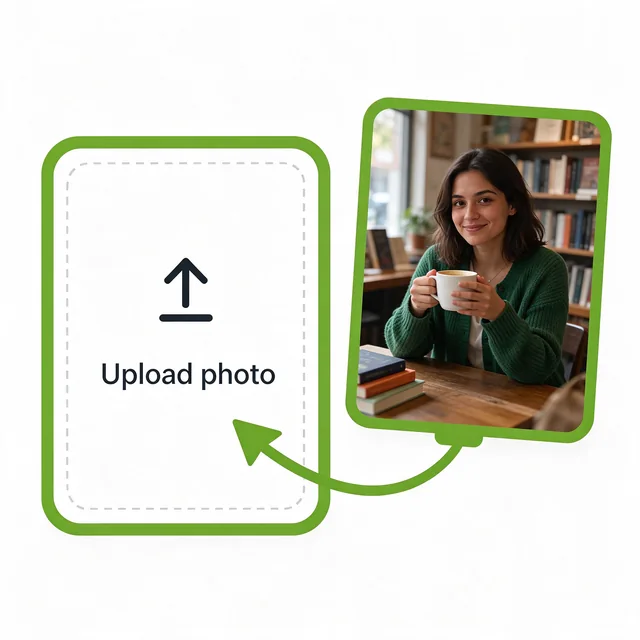
Drop in a source photo for editing, add several reference images to combine, or leave the uploader empty to generate an original image from scratch.
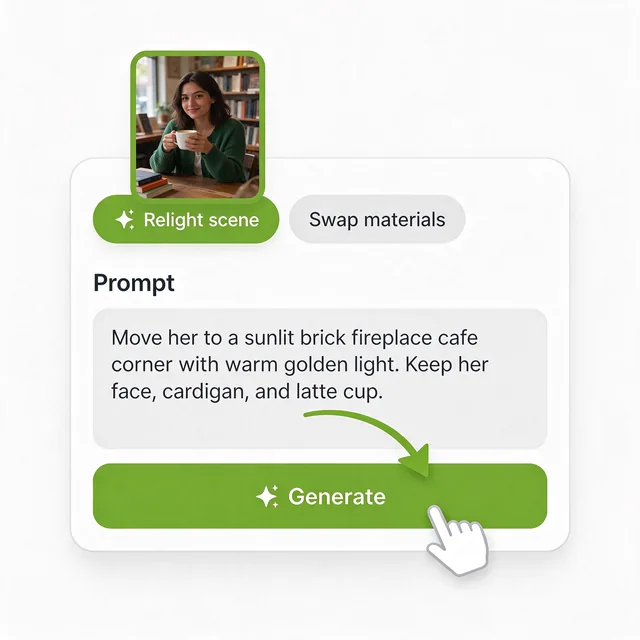
Pick a quick preset or describe the target edit clearly, naming details to preserve such as face, clothing, or framing. For text-to-image, choose your aspect ratio and clarity.
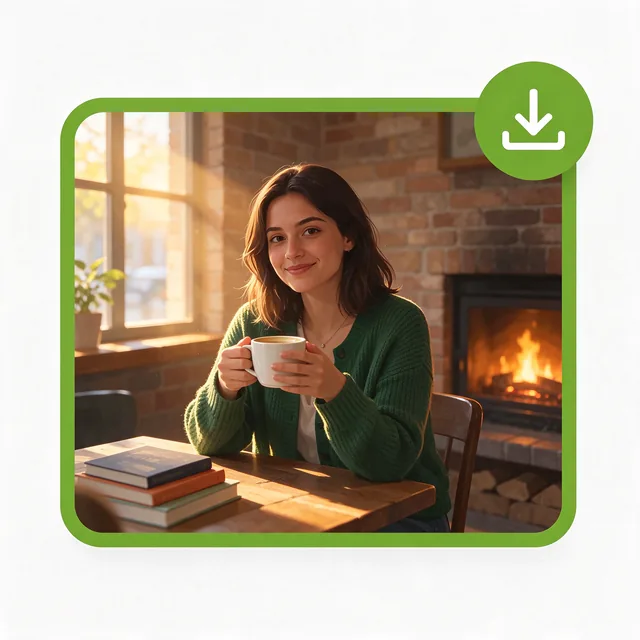
Review lighting transitions, textures, and any updated lettering, then save the clean result or run another refinement pass from the same workspace.
Answers on model tiers, editing ratios, prompt phrasing for surgical edits, text accuracy, transparent backgrounds, and free trial usage.
Upload a photo for layout-locked relighting, material swaps, and text updates, or create fresh visuals from text right in your browser.